
The Ultimate Guide to Optimizing User Engagement with WordPress Heatmap Plugins
Introduction to Heatmap Plugins
In the ever-evolving landscape of website optimization, understanding how visitors interact with your site is crucial for maximizing both user engagement and conversion rates. This is where a WordPress heatmap plugin becomes an invaluable tool in your arsenal.
Why Use Heatmap Plugins?
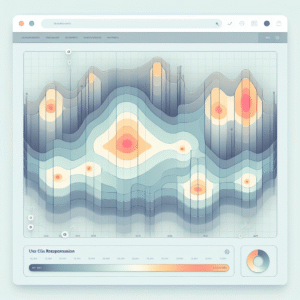
A heatmap provides a visual representation of user activity on your website, highlighting areas where visitors click, scroll, and linger. Warmer shades like red and yellow indicate high levels of interaction.
- Track user behavior with precision.
- Reveal strengths and weaknesses of your current layout.
- Guide modifications to enhance user experience.
Impact and Benefits
By gaining a deeper understanding of user preferences and behaviors, you can tailor your WordPress site to better meet the needs of your audience, leading to increased satisfaction and improved conversion outcomes.
How Heatmap Plugins Work
Visualizing User Interaction
Heatmap plugins are powerful tools that visually represent data on user activity by overlaying a heatmap on your website’s pages. This helps in understanding where users engage by displaying warmer colors like red and orange for higher activity areas and cooler colors like blue and green for less engagement.
By tracking user activity such as clicks, mouse movements, and scrolling through JavaScript, these plugins provide insights into user behaviors. This can reveal crucial information, such as a missed call-to-action button due to placement in a low-engagement area.
Detailed User Activity Tracking
Heatmap plugins record extensive user activity details, offering a detailed view of where users focus and which elements receive the most interaction. Segmenting data by device or user demographics gives insights into different audience behaviors, aiding in optimizing content and design for enhanced engagement.
For WordPress users, implementing a plugin to track click activity supports data-driven decisions, enhancing site design and functionality. It facilitates ongoing monitoring of modifications to ensure sustained effectiveness and user engagement.
Choosing the Right Plugin
Key Factors to Consider
- Define your primary objectives to narrow down choices.
- Consider user privacy with plugins like Matomo for GDPR compliance.
- Ensure compatibility with your current theme and plugins.
- Look for excellent customer support and regular updates.
- Take advantage of free trials to evaluate plugin suitability.
Top Recommended Plugins

Explore comprehensive tools such as Hotjar and Crazy Egg for detailed insights and FullStory, Matomo for privacy-focused analysis.
Setting Up and Configuring Your Plugin
Setting up and configuring a plugin to meet your specific needs can significantly enhance its functionality and value. For many WordPress users, tracking user interactions is essential to understanding and improving website performance. Here’s a step-by-step guide on how to set up and configure a WordPress user click tracking plugin effectively.
Installation
Start by navigating to your WordPress dashboard. Head to ‘Plugins’ and click on ‘Add New’. In the search bar, type ‘wordpress user click tracking plugin’. Once you find the plugin that fits your needs, click ‘Install Now’. After installation, activate the plugin.
Initial Configuration
After activation, you’ll typically find a new item in your dashboard menu. Clicking on it should take you to the plugin’s settings page. Here, basic setup options may include setting tracking parameters such as specific pages or clicks you want to monitor.
Permissions and Privacy Concerns
It’s crucial to configure your plugin while adhering to privacy standards, such as asking for consent before tracking user activities, to comply with regulations like GDPR.
Define Tracking Goals
Clearly define what user behaviors you aim to track. For example, are you interested in button clicks, scroll depth, or page visits? Determine the metrics that align with your business goals for actionable insights.
Advanced Settings
Depending on the plugin, you might have options for more advanced settings, such as custom event tracking, integration with other tools, or setting up behavior-triggered actions. Explore these features to customize how deeply you wish to track user behavior.
Verification
After setting up, always verify the tracking is operational. Conduct a test by performing the activities you expect to be tracked and check the data output or logs provided by the plugin.
Continuous Optimization
Regularly revisit the plugin settings based on the insights you acquire. As your knowledge of user behavior grows, refining your tracking parameters can lead to more focused results.
Analyzing Data and Drawing Insights
Understanding how users interact with your website can significantly enhance user experience and boost conversions. A heatmap is a powerful tool that provides a visual representation of user engagement, highlighting areas of interaction on your web pages.
- Click maps show frequently clicked areas, indicating interest or confusion.
- Scroll maps reveal how far users scroll, guiding content placement.
- Move maps track mouse movements, even without clicks.
Once your heatmap is set up, identify hotspots for strategic enhancements and cold spots to reconsider content placement. Supplement your analysis using a “track user behavior WordPress plugin” for a holistic view of user journeys and conversions.
Enhancing User Experience with Heatmaps
Enhancing user experience is crucial for any WordPress site. Heatmaps provide insight into how visitors interact with your pages by visually representing user clicks, scrolls, and movements.
For instance, users may frequently click on images that aren’t links. Making those interactive or repositioning key CTAs based on cooler zones can boost engagement.
Tools like Hotjar or Crazy Egg integrate seamlessly with WordPress and are recommended for optimizing user interaction with heatmap data.
- Visualize user interactions with clicks and scrolls.
- Identify non-interactive areas with high engagement.
- Reposition key elements for better conversions.
- Continuously improve layouts based on user behavior.
Troubleshooting Common Issues
Check for Plugin Conflicts
Plugin conflicts can cause errors when two plugins overlap in function. Deactivate all plugins, reactivating them individually to find the source of the conflict.
Update to the Latest Versions
Keep your theme, WordPress core, and plugins updated to avoid security risks and compatibility issues, enhancing overall functionality.
Clear Browser Cache
Display issues can be solved by clearing your browser cache, ensuring your browser fetches updated pages and stylesheets.
Review Permalinks Structure
Changes in permalinks can affect data recording. Ensure your plugin settings are updated to reflect any permalink changes.
Consult Documentation
Use plugin documentation and support forums for troubleshooting. They offer solutions and user experiences that might help resolve issues.
Security and Privacy Considerations
In today’s digital landscape, respecting user privacy and ensuring robust security measures are paramount, especially when utilizing tools like heatmap plugins.
- Choose plugins prioritizing data minimization.
- Anonymize IP addresses and exclude sensitive pages.
- Review privacy policies and data agreements.
- Communicate regularly with your users.
Enhancing User Trust
Regularly inform users about the tools you employ on your website. Clear and concise privacy policies that explain the data collection process and user rights can build trust.
Contact UsBrowse Categories:
You may also like

Unlocking Website Insights: The Best Plugins for User Click Tracking and 3D Modeling on WordPress
Discover the best WordPress plugins for user click tracking and 3D modeling to enhance site performance and user engagement.
Enhance User Engagement with WordPress Heatmap and User Tracking Plugins
Discover top WordPress plugins for tracking user behavior and boosting engagement, focusing on heatmaps, session recordings, and privacy considerations.

Unlocking Insights: The Best Free WordPress Plugins for Click Tracking and 3D Visualization
Discover plugins to track user clicks and visualize 3D models on WordPress, enhancing user experience at no cost.