
Master User Engagement with Top WordPress Heatmap Plugins
Introduction to User Engagement
Understanding user behavior on your website is a critical component of enhancing user engagement and driving conversions. In today’s highly competitive digital landscape, simply having an aesthetically pleasing design or good content is not enough. You need to delve deeper into how visitors interact with your website.
Consider this: when you track user behavior effectively, you’re essentially discovering a map of how visitors navigate through your site. This map can reveal invaluable data points that inform everything from content strategy to UX design.
Moreover, utilizing tools such as a ‘track user behavior WordPress plugin’ offers an accessible way to harness these insights without needing a technical background. By analyzing data, you not only see which pages users visit most but also understand their journey from entry to exit.
In essence, an effective strategy to track and optimize user engagement involves combining analytics with a keen understanding of user behavior. This approach ensures that decisions are data-driven, allowing for continuous improvement and adaptation to changing user expectations.
Why Heatmaps Are Essential
Understand user interactions and improve your website’s effectiveness with powerful visual insights.
Visualize User Interaction
Heatmaps transform complex data into intuitive visuals using color gradients to represent user interactions on different sections of a page. Warmer colors indicate popular areas, providing instant insights into user behavior.
Optimize User Experience
By revealing overlooked elements and high interaction zones, heatmaps guide essential design improvements. They are crucial for enhancing user experience and boosting conversion rates by optimizing layouts and content placement.
Why Choose WordPress Heatmap Plugins?
Deploy WordPress heatmap plugins to see where users click and make informed decisions without needing technical expertise. Gain a competitive edge by tracking click patterns and enhancing site usability for better user engagement.
Top Free Heatmap Plugins
Enhance your website’s user experience with these top-tier free heatmap plugins.
Hotjar
Provides heatmaps for up to 2,000 page views per day, session recordings, and basic filtering. Easy integration with a simple script.
Mouseflow
Free version includes up to 500 sessions per month with dynamic heatmaps, session replays, and conversion funnels.
Page Analytics
Google Chrome extension offering an overlay of essential data directly on webpages, allowing quick insights into user behavior.
Crazy Egg
Offers a 30-day free trial with access to heatmaps, scroll maps, and overlay tools to better understand user engagement.
Exploring Paid Heatmap Options
Advanced Features for Deeper Insights
In the diverse world of website analytics, heatmap plugins have established themselves as invaluable tools for understanding user behavior. While free versions offer basic insights, investing in a premium heatmap plugin can substantially elevate your data analysis capabilities.
- Enhanced session recording capabilities provide detailed user session replays.
- A/B testing integrations to optimize layouts and call-to-actions.
- Real-time analytics and segmentation capabilities for deeper understanding.
Why Upgrade?
Upgrading to a paid heatmap plugin means gaining access to robust analytics capabilities that go beyond simple click tracking. This can lead to a more granular analysis of user behavior, ultimately giving you the insights needed to refine your web strategy and enhance user experience significantly.
For those seeking an alternative to Hotjar for WordPress, there are several premium plugins available that offer competitive features. Investing in these tools is a strategic move for those serious about optimizing their site based on powerful data insights.
How to Implement Heatmaps
Implementing heatmaps on your WordPress site is a powerful way to track and understand user behavior, providing visual representations of where users click, how far they scroll, and what parts of your website attract the most attention. This guide will walk you through setting up a heatmap using a popular plugin.
Choose a Heatmap Plugin
Begin by selecting a reliable WordPress plugin that can record user activity, such as “Crazy Egg,” “Hotjar,” or “Mouseflow.” These tools offer various features for tracking user interactions and provide heatmaps along with additional insights like click maps and session recordings.
Install and Activate the Plugin
From your WordPress dashboard, navigate to ‘Plugins’ > ‘Add New.’ Search for your plugin, locate it from the search results, and click ‘Install Now.’ Once installation completes, click ‘Activate’ to enable the plugin.
Configure the Plugin Settings
Each plugin will require unique setup steps, typically involving accessing an account on the plugin’s website, registering your site, and obtaining a tracking code.
Add the Tracking Code to Your Site
If required, add this tracking code to your site’s header via the plugin interface or manually using a header/footer plugin to insert code.
Set Up and Customize Your Heatmap
Define specific pages or areas of your site for heatmap tracking. Adjust filters and metrics as needed to track user interactions effectively.
Analyze Your Results
After collecting data, analyze the results to identify high click areas or sections needing improvement. Use these insights to enhance user experience by optimizing site elements.
Tracking and Analyzing Data
Heatmaps provide essential visual representation of user interaction on your website, offering deeper insights compared to standard analytic reports. Understand how users navigate your WordPress site using these powerful tools.
- Focus on high activity areas indicated by red, orange, or yellow spots.
- Identify clicks on non-interactive elements and consider UX improvements.
- Use scroll maps to evaluate engagement depth and reposition key elements.
- Leverage A/B testing for data-backed design optimization.
Transform Your Insights
By continuously analyzing heatmap data and making informed changes, enhance your site’s performance significantly. Implement strategic changes and see your engagement grow.
Get in TouchPrivacy Considerations
In today’s digital landscape, privacy has become a cornerstone of trustworthy online interactions. While tracking plugins, such as a WordPress plugin to visualize user interaction, offer invaluable insights into user behavior, they also present privacy challenges that should not be overlooked. It’s crucial for website owners to respect user privacy and adhere to applicable data protection regulations.
- Familiarize yourself with privacy laws like GDPR and CCPA, ensuring transparency in data collection and user consent.
- Use privacy-focused WordPress heatmap tools that offer data anonymization and opt-in mechanisms.
- Maintain an accessible and comprehensible privacy policy reflecting your data practices.
Additionally, a commitment to privacy enhances your brand’s reputation. Users are more likely to trust and engage with websites that communicate their data practices clearly and offer options to manage consent.
Taking a responsible approach to using tracking plugins builds a solid foundation of trust with your audience. Position your brand as a leader in ethical data collection, fostering a more secure and respectful online environment for all users.
Contact UsMaximizing Plugin Benefits
Heatmap data is a powerful tool that can provide deep insights into how users interact with your WordPress site. By visualizing user behavior, heatmaps show precisely where visitors click, how far they scroll, and which segments of your site attract the most attention. Leveraging this data can revolutionize your approach to optimizing user experience and boosting conversions.
Identify Key Areas
If you notice that certain areas of your page receive more clicks or attention, place your call-to-action buttons or important information there to capitalize on the high activity.
Adapt Content Placement
If users aren’t engaging with particular content, tweak or reposition it for better visibility. Use heatmaps to guide these changes effectively.
Make Iterative Changes
Even small changes based on heatmap insights can lead to significant improvements. Focus on a few key areas, measure the impact, and iterate.
Plugins like Crazy Egg or Hotjar offer comprehensive visualization features that can highlight problem areas and opportunities for enhancement. By implementing changes derived from heatmap analysis, you’re not only refining the site for performance but also providing a more engaging user-centric experience.
Browse Categories:
You may also like
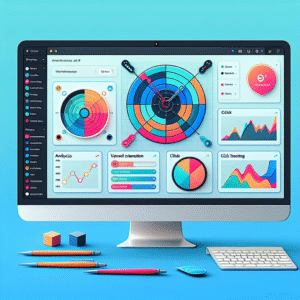
Guide to Enhancing User Experience with WordPress Heatmap and Click Tracking Plugins
Explore top WordPress heatmap and click tracking plugins to boost user engagement and site performance with actionable insights.

Unlocking Insights: The Best WordPress Plugins for User Behavior Analytics
Explore essential WordPress plugins for tracking user interactions to optimize experience and improve insights on user behavior.

Unveiling User Behavior: Top Plugins for Heatmaps and Click Tracking on WordPress
Discover the best plugins to track user behavior and click on WordPress, enhancing site experience and unlocking actionable insights.