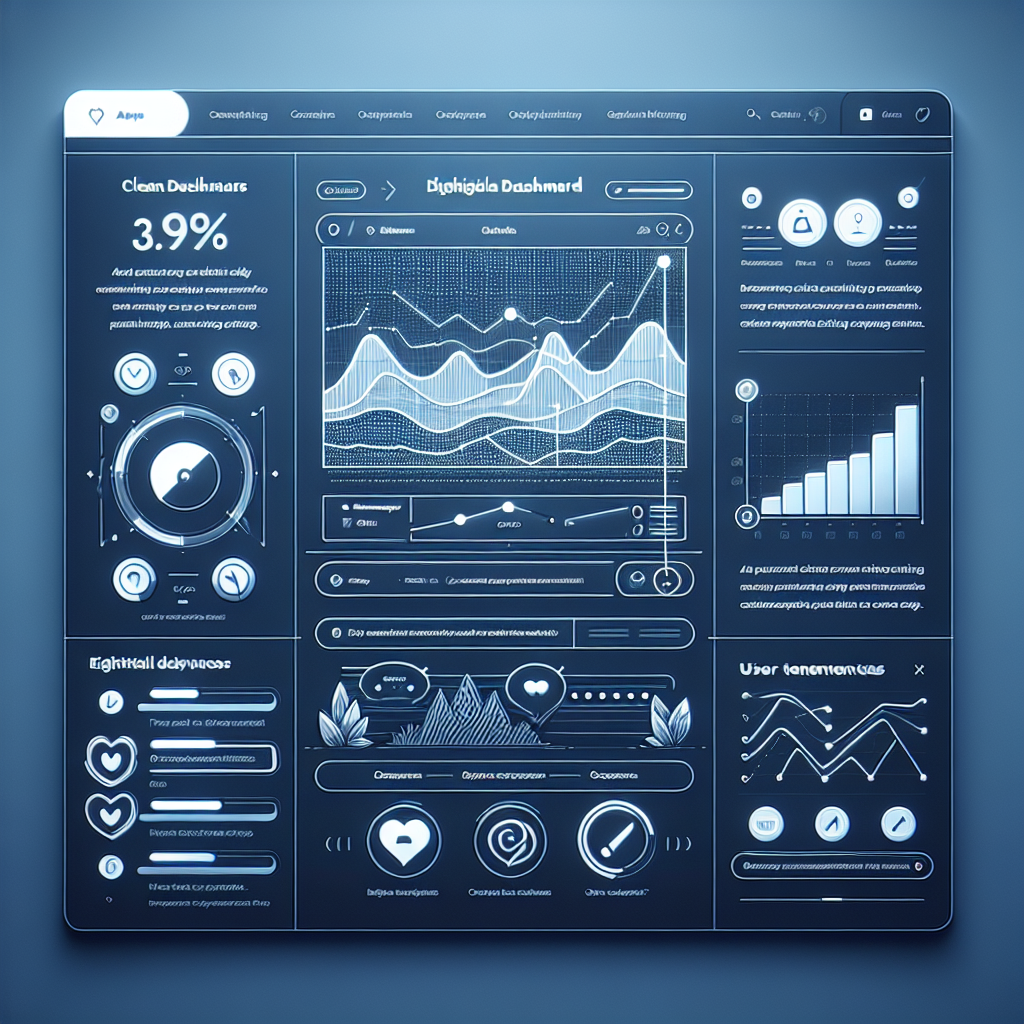
Enhance User Experience with WordPress Click Tracking and Heatmap Plugins
Introduction to Click Tracking and Heatmaps
Understanding what your site visitors are doing can make the difference between success and failure. Click tracking and heatmaps are essential for grasping user behavior on your WordPress site.
Visualize Interactions
Use a WordPress heatmap plugin to visualize user interactions, from highly engaged content to overlooked sections.
Monitor Click Activity
Employ click tracking to see which elements are clicked most and adjust design or placement accordingly.
Real-World Impact
Implementing these tools has empowered businesses to innovate and tailor their approaches for optimal user satisfaction and results.
Essential Features of a WordPress Heatmap Plugin
Click Tracking
Understand user engagement by identifying which site elements attract the most and least clicks, optimizing layout and call-to-action placements.
Session Recording
Watch real-time playbacks of visitor actions such as scrolling and mouse movements to uncover usability issues and improve performance.
Segmentation and Filtering
Break down data by demographics or behavior to uncover specific patterns, providing a more targeted approach to optimization.
Responsive Design Analysis
Ensure your site performs well across various devices, continuously enhancing features to meet mobile user demands.
Real-Time Heatmaps
Gain instant feedback on new content or layout changes, adjusting strategies on-the-go for immediate improvements.
Comparing Top WordPress Heatmap Plugins
Crazy Egg
Ideal for users looking for a straightforward setup with robust features, Crazy Egg provides heatmaps, click tracking, session recordings, and A/B testing capabilities with seamless WordPress integration.
Lucky Orange
Offering a comprehensive suite with real-time analytics, this plugin includes dynamic heatmaps, session recordings, live chat, and surveys—ideal for users seeking a holistic toolset.
Hotjar
Known for its comprehensive services, Hotjar provides powerful insights via heatmaps, session recordings, and feedback tools, although less WordPress-centric than some alternatives.
Mouseflow
For detailed analytics on user interactions, Mouseflow offers heatmaps, click tracking, and funnel analysis, providing precise user behavior insights without hefty investments.
WP Click Tracker
Designed specifically for WordPress, WP Click Tracker offers an intuitive method for analyzing user click behavior, perfect for those seeking simplicity and effective click tracking.
Finding Lightweight and Effective Plugins
As website owners, balancing functionality with performance is crucial. Discover how lightweight plugins can offer essential features without slowing your site.
Lightweight Heatmap Plugins
Track user interactions efficiently with plugins like “Heatmap for WordPress”, offering detailed insights without site bloat. Monitor clicks, scrolls, and engagement hotspots seamlessly.
“Efficiency meets effectiveness in user tracking.”
Lightweight 3D Model Plugins
Incorporate 3D models without slowing your site using plugins like “Sketchfab for WordPress”. Integrate stunning 3D content while keeping your server resource light.
“Aesthetic appeal without performance cost.”
How to Install and Configure Click Tracking Plugins
Follow these steps to effortlessly track where and what users are clicking on your WordPress site.
1. Choose a Plugin
Popular choices include “MonsterInsights” for comprehensive analytics and “Heatmap” plugins for visual insights.
- MonsterInsights
- Crazy Egg
- Clicky
2. Install the Plugin
Navigate to your WordPress dashboard, hover over ‘Plugins’, and click ‘Add New’. Use the search bar, install and activate your chosen plugin.
3. Configure the Plugin
Use the setup wizard provided by each plugin for initial configuration, such as linking your Google Analytics if required.
4. Test & Analyze
After configuration, test the setup by interacting with your site and check the plugin dashboard to ensure accurate data collection and analysis.
Analyzing Heatmap Data for Better Insights
Understanding heatmap analytics can unlock valuable insights to enhance your website’s user experience. Explore how user interaction data translates into actionable changes.
Color Gradients
Discover the meaning behind heatmap color gradients. Red indicates high user interaction, while blue represents areas of lower engagement.
- Identify interactive zones
- Analyze color spectrum
- Adapt design to interaction needs
Privacy-Focused Plugins
Utilize plugins focused on privacy to ensure user data protection while tracking and analyzing behavior.
- Incorporate privacy-friendly tools
- Maintain user trust
- Align with privacy regulations
Actionable Insights
Turn heatmap insights into design improvements for a user-centric experience that boosts engagement and satisfaction.
- Refine page layouts
- Enhance navigational elements
- Iterate for continuous improvement
Important Privacy Considerations
When employing tracking tools on your website, especially when using a WordPress plugin to visualize user interaction, it’s crucial to be mindful of user privacy. With growing concerns over data protection, webmasters must adhere to key privacy regulations like the General Data Protection Regulation (GDPR) and the California Consumer Privacy Act (CCPA).
Privacy-Focused Tools
Select solutions that anonymize user data and provide options for visitors to opt out of tracking. A good example is a privacy-focused WordPress heatmap.
Transparency and Compliance
Disclose to your users how data will be collected and used via a comprehensive privacy policy. Allow easy management of privacy preferences.
Regular Compliance Review
Regularly review your compliance with current regulations, checking for updates in privacy laws and adjusting accordingly.
Building Trust and Credibility
Complying with privacy regulations helps build trust and credibility for your brand while protecting users.
Leveraging Data for Continuous Improvement
Utilize heatmaps and click tracking insights to refine and enhance your website experience continuously.
Heatmaps
Visualize where users engage most on your site. Use this insight to optimize layout and focus on what truly resonates with visitors.
- Understand user behavior patterns visually.
- Identify high-engagement areas effortlessly.
Click Tracking
Dive deeper into click paths to refine navigation and eliminate distractions, ensuring users reach their goals efficiently.
- Analyze click frequency and points of interest.
- Streamline user journeys effectively.
Browse Categories:
You may also like
Enhance Your WordPress Site with User Click Tracking and 3D Integration
Discover how to enhance your WordPress site with user click tracking and 3D integration for improved engagement and experience.
Unlocking User Insights: Tracking User Behavior with WordPress Plugins
Discover top plugins to track and optimize user behavior on WordPress, boosting engagement through strategic insights.
Enhance Your WordPress Site: Top Plugins for User Interaction and Experience
Discover top WordPress plugins to improve user interaction and experience, including heatmaps, session recordings, and 3D viewers.