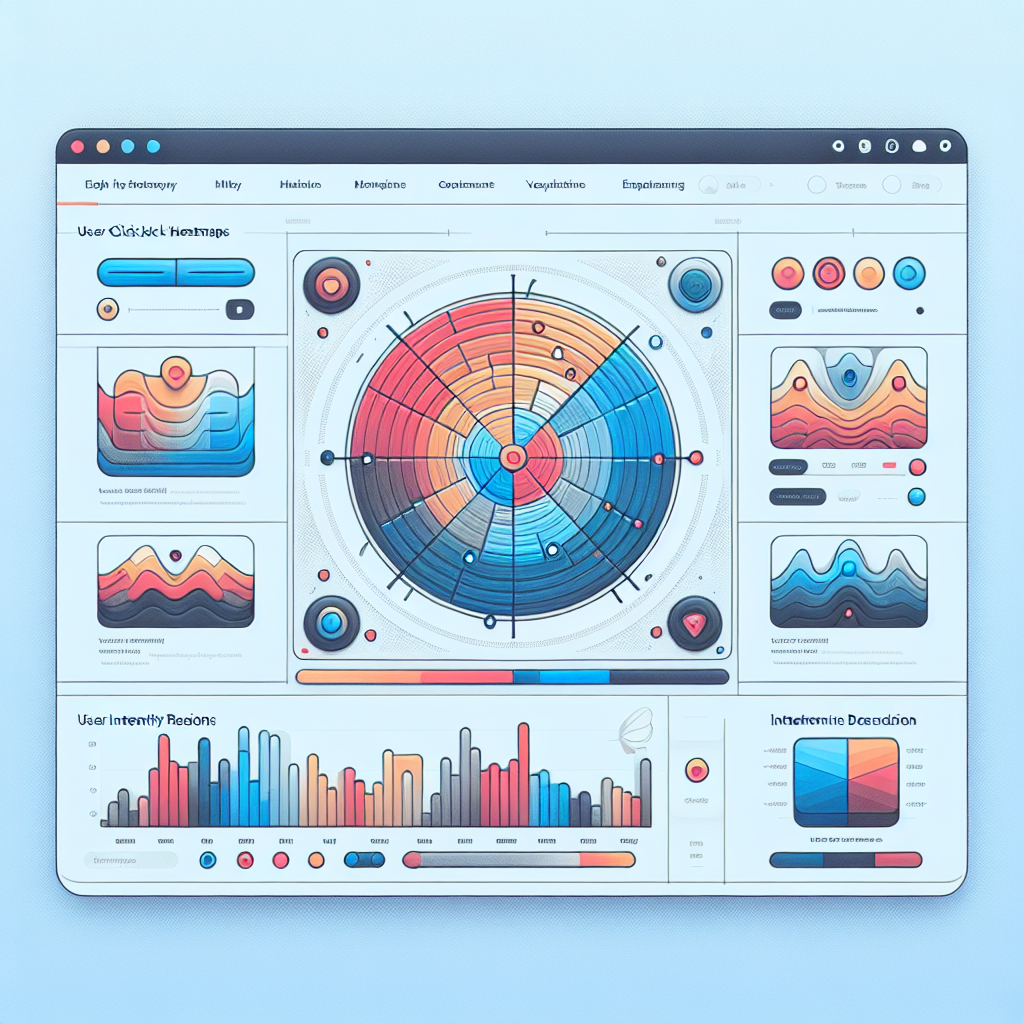
Maximize User Engagement With The Best WordPress Heatmap Plugins
Introduction to Heatmaps
Discover how heatmaps reveal the hidden behavior of your website users and why they are indispensable for optimizing engagement.

The Power of Visual Data
Heatmaps convert complex data into easy-to-understand visuals, highlighting user interactions and drawing attention to click hotspots, scroll depths, and engaging content. They are critical in enhancing your website’s layout and user experience.
- Identify click locations and focus areas.
- Monitor scroll reach and viewer engagement.
- Detect overlooked areas needing optimization.
Benefits of Using Heatmap Plugins
Understanding how users interact with your website is crucial for optimizing the content and layout to improve the overall user experience. Heatmap plugins for WordPress offer insightful data on user interactions, revealing where users click, scroll, and pause on your pages.
-
Direct Feedback on User Behavior
Experiment with the placement or design of calls-to-action for better conversion based on click behavior data.
-
Privacy-Focused Insights
Privacy-focused plugins safeguard visitor data while still providing essential insights, crucial for GDPR compliance.
-
Boost Conversion Rates
Increase conversions by optimizing key pages and processes, as shown by real-world success stories.
Optimized User Journeys
Adopt heatmap plugins to enhance the user journey and gain data-driven insights crucial for web optimization.
Learn MoreTop Free Heatmap Plugins for WordPress
Empower your site with cost-effective solutions. Discover how visitors interact with your website using these top free heatmap plugins, perfect for small businesses and bloggers.
Hotjar
Enjoy heatmaps, session recordings, and feedback with Hotjar’s free plan, enabling you to track and optimize user engagement.
Crazy Egg
Dive into user click interactions and other behaviors with Crazy Egg’s powerful, free heatmapping and analytics features.
Mouseflow
Experience heatmaps alongside visitor recordings and session replays, making Mouseflow a powerful free option.
Inspectlet
Utilize these free heatmaps to highlight user click patterns, complemented by detailed session recordings from Inspectlet.
Realtime Heatmap
Access live heatmap data effortlessly with Realtime Heatmap, providing real-time insights into user behavior for immediate action.
Comparing Premium Heatmap Plugins
Crazy Egg
Detailed heatmaps and robust A/B testing tools perfect for visualizing user interaction and supporting strategic decision making for higher conversions.
- Advanced filtering options
- Segment data with precision
- Enhance conversion rates
Mouseflow
Offers session replay, comprehensive heatmaps, and conversion funnels, equipped with a friction score to identify and solve usability issues.
- Session replay features
- Comprehensive heatmaps
- Friction score analysis
Lucky Orange
Not just heatmaps and session recordings, Lucky Orange includes live chat and visitor polls, enhancing customer interaction and experience analysis.
- Integrated live chat
- Real-time user tracking
- Visitor polls for feedback
Piwik PRO
A strong choice prioritizing privacy and GDPR compliance, offers comprehensive analytics combined with heatmapping and robust data protection.
- GDPR compliant analytics
- Comprehensive user data protection
- Heatmapping capabilities
Installing and Configuring Heatmap Plugins
Installing and configuring a heatmap plugin on your WordPress site might initially seem daunting, but it’s a straightforward process that yields significant insights into user behavior. Here’s a simple step-by-step guide to help you set up your WordPress heatmap plugin without a hitch:
- Select the Right Plugin: Choose a reliable and user-friendly heatmap plugin compatible with your WordPress version. Popular options include Hotjar, Crazy Egg, and Mouseflow.
- Install the Plugin: Navigate to your WordPress dashboard, click ‘Plugins’, then ‘Add New’. Search for the plugin, then click ‘Install Now’ and ‘Activate’ to enable it.
- Configure Plugin Settings: Access the plugin settings through the new menu item in your dashboard. Enter account details if required, such as an API key.
- Set Tracking Requirements: Select the pages to track and define types of user interactions like clicks or scrolls in the plugin settings.
- Review Heatmaps: Once the plugin collects data, review heatmaps via your dashboard or the plugin’s site to analyze user behavior and improve your site.
By following these steps, you’re well on your way to utilizing a powerful tool to optimize your website’s user experience. Happy tracking!
Utilizing Heatmap Insights for Better UX
Interpreting heatmap insights can be a game-changer when it comes to improving user experience on your website. Heatmaps provide a visual representation of user behavior, highlighting areas of high interaction through warmer colors and less engaged spots in cooler tones.
- Identify popular and overlooked areas on your site to optimize navigation.
- Discover user misconceptions by analyzing clicks on non-interactive elements.
- Increase conversion rates by repositioning calls-to-action based on user behavior data.
Case Study
Consider a website that democratizes e-learning. By utilizing a heatmap, the site owners realized that a significant number of users stopped scrolling just before reaching the ‘Sign Up’ button. Moving the button higher on the page resulted in a 25% increase in sign-ups.
Common Issues and Troubleshooting
Ensure a seamless user experience by addressing potential plugin technical issues.
Identifying Plugin Conflicts
Plugin conflicts occur when two plugins interfere with each other, leading to malfunctions. Deactivate all plugins and reactivate them one by one to find the culprit.
- Check plugin documentation for known issues.
- Look for updates or patches on developer websites.
- Engage with support forums for community advice.
WordPress Updates & Troubleshooting
Post-update issues in WordPress can affect both functionality and display, commonly due to insufficient plugin updates.
- Ensure consistency by updating WordPress and plugins regularly.
- Test new installations in a staging environment.
- Maintain regular backups for recovery.
The Future of WordPress Heatmap Plugins
Exploring innovations and trends in heatmap technology within the WordPress ecosystem.
AI and Machine Learning Integration
Future heatmap plugins will harness AI to automatically identify patterns, enabling businesses to effortlessly optimize their websites.
Advanced Session Recording
Expect plugins to include superior session tracking and behavior prediction, aiding in the effective engagement of site users.
Customization and User-Friendly Design
With intuitive interfaces and extensive customization, users without technical expertise can leverage powerful analytics seamlessly.
Security and Compliance
Prioritizing privacy, future plugins will comply with regulations while offering comprehensive analytics for forward-thinking functionalities.
Browse Categories:
You may also like

Unlocking User Insights: Top Plugins for Click Tracking and Heatmaps on WordPress
Discover the best plugins for tracking user clicks and heatmaps in WordPress to enhance your site's performance and user experience.
Maximizing Your Site’s Potential with WordPress Heatmap and User Interaction Plugins
Discover the best plugins to track user behavior on WordPress, optimize experiences, and ensure site performance with privacy in mind.

Top WordPress Plugins for Tracking User Interactions in 2025
Explore essential WordPress plugins of 2025 for tracking user interactions to enhance your site's user experience and conversions.