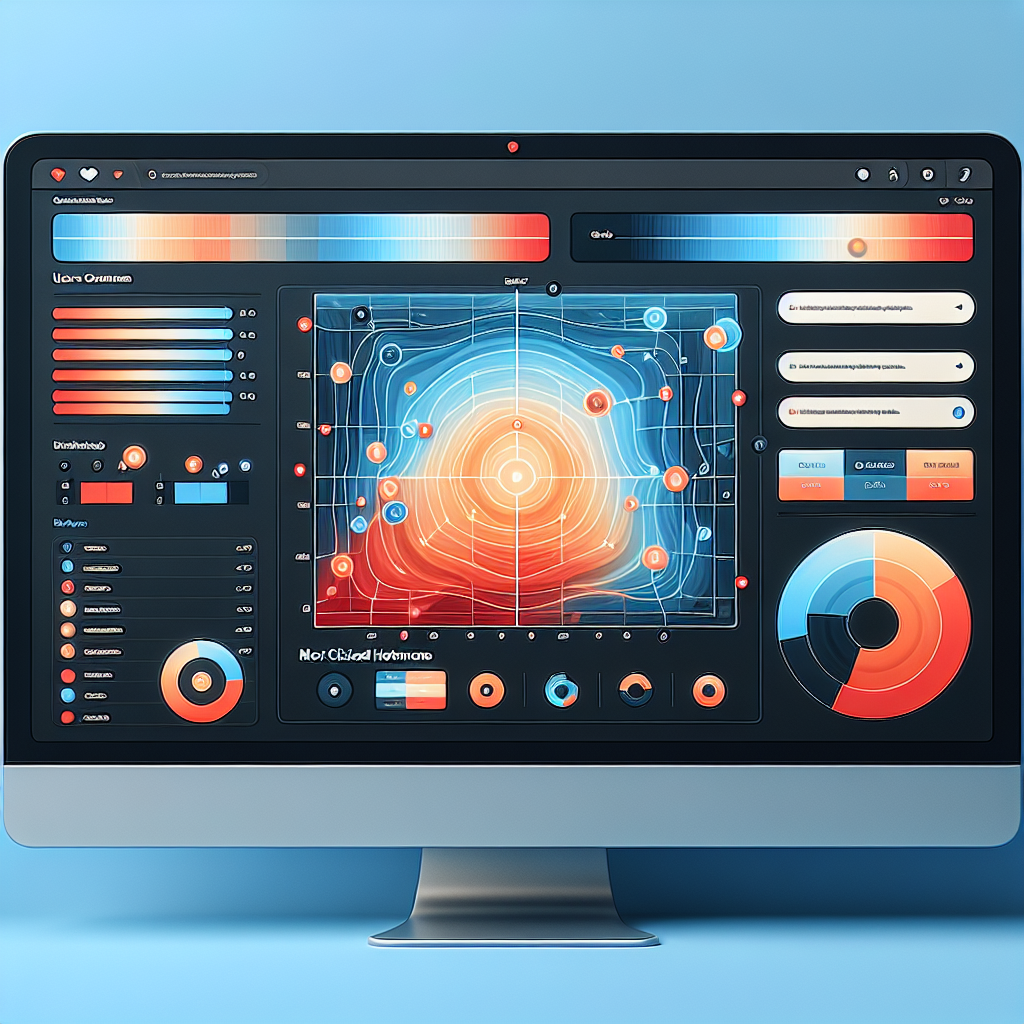
Discovering the Best Heatmap Plugins for WordPress: Enhance User Experience Seamlessly
Introduction to Heatmaps: Understanding User Interactions
Heatmaps have become an indispensable tool for website owners and developers, particularly those operating within the WordPress ecosystem. By visually representing user interactions on a website, heatmaps offer insights that text-based analytics alone cannot provide.
Visual Insights
Heatmaps leverage color variations to depict areas of high activity versus less engaged regions, offering a clear visualization of user navigation patterns.
- High activity areas
- Low activity areas
Actionable Insights
Using a WordPress heatmap plugin can reveal which content captures attention and highlight navigational elements that drive results, enhancing user experience and conversion rates.
- Understand user behavior
- Optimize for conversions
As we delve into various plugin options, it’s important to recognize the power of heatmaps as more than just a diagnostic tool—they’re a dynamic way to elevate user engagement and satisfaction on your WordPress site.
Benefits of User Click Tracking: Maximizing Engagement
In today’s competitive digital landscape, understanding user behavior on your website is crucial for maximizing engagement and driving conversions. User click tracking offers a powerful method for gaining insights into how visitors interact with your site, enabling you to optimize content and improve user experience.
By utilizing a WordPress user click tracking plugin, you can visually map out the paths users take through your site. This allows you to identify popular areas and those that may need improvement, helping you make data-driven decisions on content placement and UX enhancements.
- Gain insights on visitor interactions and optimize user experience.
- Identify popular areas and improve less visited sections.
- Refine CTAs for better positioning and increased conversions.
“Tracking user clicks not only enhances engagement but crafts a personalized browsing experience that captivates your audience.”
Top Free Heatmap Plugins for WordPress: Budget-Friendly Options
Crazy Egg
Experience powerful tools like heatmaps, scroll maps, and user recordings during their free trial period. Once you’re ready for more, their competitively priced paid plans offer advanced options.
Heatmap for WordPress
Designed specifically for WordPress, this plugin offers real-time monitoring and click-tracking. Its privacy-first approach ensures no data leaves your server.
Matomo
Known for its analytics capabilities, Matomo offers a heatmap feature that requires more setup but provides greater data control with an open-source framework.
By utilizing these tools, you can optimize your site layouts effectively, enhancing user experience and boosting conversions without financial strain.
Exploring Session Recording Plugins: Tracking in Real-Time
As digital strategies become more refined, understanding user behavior in depth is crucial for optimizing websites and enhancing user experiences. While heatmaps offer valuable visual insights into user interactions, session recording plugins provide an even more detailed perspective by allowing you to track real-time user activity.
Track Real-Time Activity
Capture every mouse movement and click, transforming them into replayable events to understand users’ journeys.
Discover User Patterns
Identify where users hesitate or drop off, integrating insights with heatmaps for a comprehensive user analysis.
Optimize and Improve Interfaces
Leverage insights to fine-tune user interfaces and enhance digital experiences, driving engagement and conversions.
Top Plugins to Consider
- Hotjar – Seamlessly integrates with WordPress for superior insights.
- Mouseflow – Offers session replay capabilities and in-depth analytics.
Privacy-Focused Heatmap Solutions: Respecting User Privacy
Ensuring user trust while tracking interactions through ethical plugin choices.
In an era where data privacy is critical, opting for privacy-focused heatmap solutions is fundamental for maintaining user trust while gathering valuable insights. These tools ensure ethical data handling and transparency.
-
Anonymizing user data to protect identifiable information.
-
Compliance with privacy regulations such as GDPR and CCPA.
-
Offering detailed consent options to users.
-
Allowing users the option to opt out of tracking.
Featured Tools
- Hotjar: Advanced anonymization options
- Crazy Egg: Easy privacy-compliance features
Choosing the Right Heatmap Plugin: Tips for Success
Selecting the right heatmap plugin is key to unearthing insights that will help optimize your website’s performance. Not all plugins are created equal, and choosing the right one depends on a few critical factors.
Key Selection Criteria
- Analyze your specific website needs: user interactions, conversion rates, navigation paths.
- Seek comprehensive tracking features: scroll depth, mouse movement, segmented data.
- Ensure site compatibility: seamless WordPress integration and minimal performance impact.
- Evaluate pricing against features and potential ROI.
Popular Plugins
Consider reputed plugins like Hotjar, Crazy Egg, and Lucky Orange, known for their robust features and ease of use. These tools provide a comprehensive suite for understanding user behavior.
Taking a balanced approach by considering features, compatibility, and budget ensures you maximize the benefits to your website.
Contact Us for GuidanceInstalling and Integrating Your Plugin: A Step-by-Step Guide
- Access WordPress Dashboard: Begin by logging into your WordPress admin dashboard.
- Add New Plugin: Navigate to ‘Plugins’ and select ‘Add New’. Use the search bar to find your preferred heatmap plugin. Popular options include ‘Hotjar’ and ‘Crazy Egg’.
- Install and Activate: Once chosen, click ‘Install Now’. After the installation completes, press ‘Activate’ to enable the plugin.
- Initial Setup: Most plugins will prompt you for initial setup, such as creating an account and connecting to the heatmap service. For Hotjar, insert the provided tracking code into WordPress.
- Customize Settings: Adjust the plugin’s settings for optimal tracking, such as choosing specific pages to monitor. Customize conditions to gather precise data.
- Visualize User Interactions: Once set up, begin visualizing interactions using heatmap data to identify areas of interest and points of friction for site visitors.
Analyzing Heatmap Data: Optimizing User Experience
Equip yourself with strategies to interpret heatmap data effectively and make data-driven decisions to enhance user experience.
Identify User Engagement Patterns
Spot hotspots of frequent clicks and adjust design elements to minimize distractions or redirect attention to actionable areas.
- Observe user interaction hotspots
- Reduce confusion by optimizing non-interactive elements
Focus on Scroll Depth Metrics
Understand the visibility of key content by evaluating how far users scroll and if they reach critical information.
- Assess whether important content is reached
- Improve content positioning or engagement hooks
Utilize User Behavior Tracking Tools
Enhance data collection with plugins that offer real-time feedback, helping to pinpoint improvement areas.
- Automate data collection
- Customize insights on user interactions
Analyze Exit Points
Determine where users abandon your site and explore different design tests or persuasive content strategies to retain engagement.
Browse Categories:
You may also like

Elevate Your WordPress: The Top Heatmap Plugins for Better User Insights
Discover the top WordPress heatmap and session recording plugins to optimize user experience and elevate website insights seamlessly.

Boost User Engagement: Top WordPress Plugins for Click Tracking and Session Recording
Discover powerful WordPress plugins that enhance user engagement through click tracking and session recording. Improve experience and conversions today!

Maximize Engagement with WordPress User Click Tracking and Heatmaps
Learn how to enhance your WordPress site with user click tracking and heatmaps to boost engagement and conversion rates.