Enhance User Experience with WordPress Click Tracking and 3D Viewer Plugins
Understanding User Behavior on Your WordPress Site
Understanding user behavior on your WordPress site is crucial for enhancing user experience and driving business success. By tracking how visitors interact with your site, you can identify patterns and improve site design, content, and functionality.
-
Use a click tracking plugin to gain detailed insights into user interactions and optimize your site like shelving in a retail store to boost effects and user guidance.
-
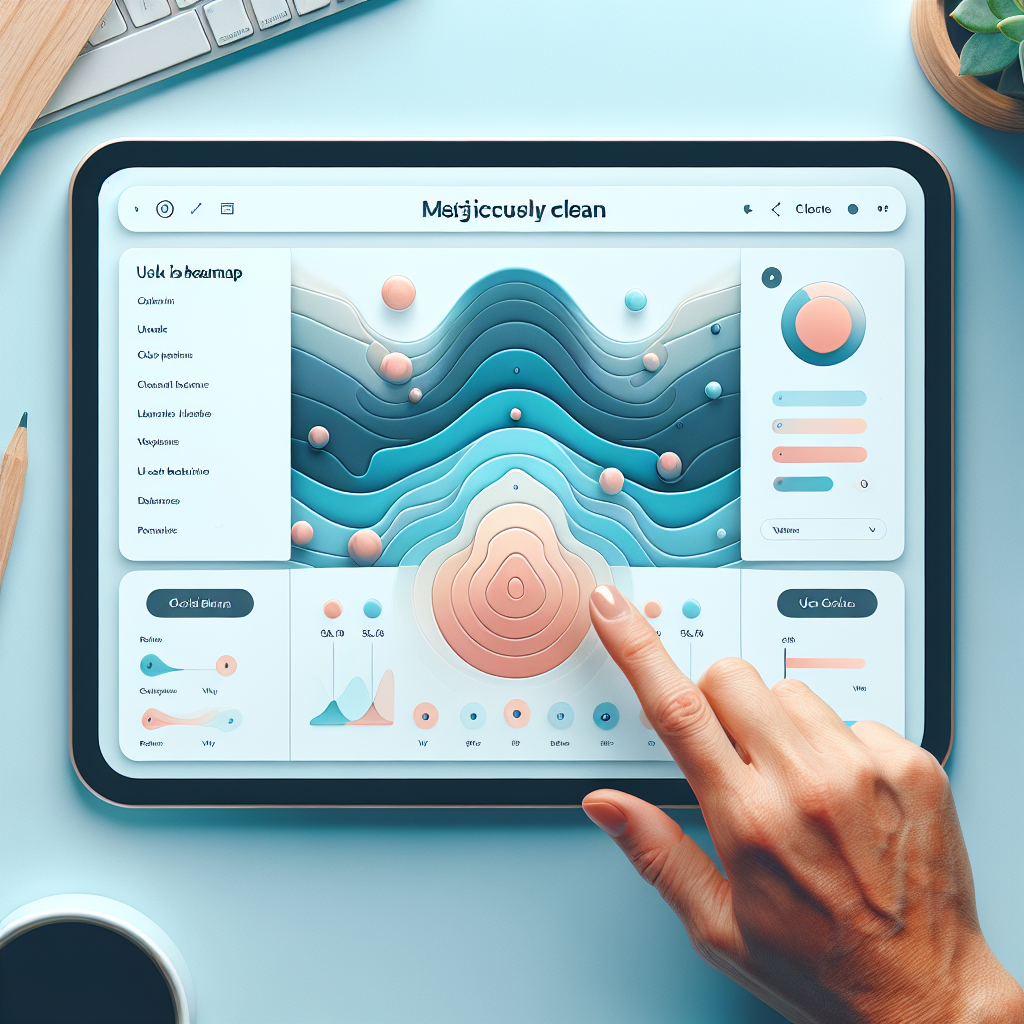
Implement heatmaps and session recordings to visualize which parts of your website draw the most attention, allowing precise improvements.
-
Ensure crucial CTAs are placed optimally by spotting where user attention drops, positioning for maximum visibility and conversions.
Choosing the Right Heatmap Plugin
In today’s competitive digital landscape, understanding user behavior on your website is more critical than ever. Heatmap plugins offer a visual representation that can be incredibly insightful, highlighting how users interact with your site. Selecting the right WordPress heatmap plugin can significantly enhance your conversion strategy by identifying which areas of your pages are capturing attention and which are being overlooked.
Ease of Use & Integration
Consider factors such as the ease of use, integration capabilities, and the level of detail provided in the heatmaps. For instance, some heatmap tools offer click tracking, scroll behavior, and attention maps, all of which deliver different layers of understanding.
Basic vs Comprehensive
Consider whether you need a comprehensive tool or a more stripped-down version, perhaps even a free WordPress heatmap plugin, to start with the basics.
Real-World Impact
Real-world examples highlight the impact of using the right heatmap plugin. Imagine an e-commerce site that noticed shoppers frequently clicking images that were not linked to product pages. By adjusting these images based on heatmap insights, the company improved user experience and saw an increase in conversions. Similarly, a blog that observed that users only scrolled halfway through long posts used heatmap data to make strategic content adjustments, enhancing engagement and reader retention.
Unlocking the Power of Session Recording
In today’s competitive digital landscape, understanding your users’ behavior is crucial for enhancing your website’s performance. Session recording tools provide an invaluable way to gain insights into the user experience by capturing and replaying real user interactions. Imagine being able to see exactly how users navigate through your site, where they click, pause, or abandon their journey.
By employing session recording plugins, WordPress users can observe user interactions, providing concrete evidence of the user journey. These insights help optimize your website, improve user satisfaction, and potentially increase conversion rates. For instance, rectifying an unnoticed form validation error improved an online retailer’s conversions.
Choosing the best session recording plugin means considering factors such as ease of use, data privacy safeguards, and the range of features offered. These tools not only illuminate user experience gaps but also empower you to create a more efficient interface.
Benefits of Session Recording:
- Capture and replay user interactions for real insights.
- Identify navigation pathways, friction points, and UX gaps.
- Improve conversions by pinpointing problematic areas.
- Enhance the effectiveness of your WordPress site design.
Essential Plugin Installation and Setup Tips
Installing and setting up a click tracking plugin can transform your understanding of user behavior on your WordPress site. To start, choose a reliable plugin that fits your needs. Look for popular options like Hotjar, Crazy Egg, and Mouseflow known for their user-friendly interfaces and comprehensive tracking features.
Installation Steps:
- Navigate to the Plugins section in your WordPress dashboard and click on ‘Add New’.
- Search for the plugin and install it.
- Activate the plugin to start configuring settings.
Setup Tips:
Customize your settings for precise tracking. Focus on specific site elements like call-to-action buttons, form submissions, and product pages. Leverage features like Crazy Egg’s heatmaps to visualize click patterns and optimize accordingly.
Ensure data capture complies with privacy regulations (e.g., GDPR), possibly by anonymizing data or automating user consent processes.
Popular Plugins
- Hotjar
- Crazy Egg
- Mouseflow
Exploring 3D Viewer Plugin Options
In today’s digital age, attracting and retaining user attention is more crucial than ever. Integrating a 3D viewer plugin into your WordPress site enhances user engagement with dynamic and interactive content.
Engage Users with Dynamic Visuals
These plugins allow users to rotate, zoom, and explore objects as if physically handling them, enriching the experience and adding practical value.
Contact UsChoosing the Best 3D Plugin for Your Needs
1. Assess Your Project’s Requirements
Define what you need the 3D plugin to accomplish to narrow down your choices effectively.
2. Consider Performance and Load Times
Choose lightweight plugins to maintain a balance between visual appeal and site performance.
3. Evaluate User-Friendliness and Support
Opt for plugins with user-friendly interfaces and strong support to save time and frustration.
4. Check Compatibility and Flexibility
Ensure compatibility with your WordPress theme and other plugins for a seamless integration.
5. Look for Demonstrated Success
Research examples of similar projects where the plugin was effectively used.
6. Budget Appropriately
Balance your budget against the features offered; premium versions provide additional support.
Troubleshooting Common Plugin Issues
Encountering plugin conflicts and errors is a common experience for WordPress users, but don’t worry—understanding how to troubleshoot these issues can save you from unnecessary stress and keep your site running smoothly.
- Identify the Conflict: Often, plugin conflicts arise after a new plugin installation or update. Deactivate the latest plugin to see if the issue resolves.
- Check for Updates: Ensure that WordPress, your themes, and all plugins are up to date.
- Enable WordPress Debug Mode: Add
define('WP_DEBUG', true);to your wp-config.php file. - Conflicting Plugin Test: Deactivate all plugins, then reactivate them one by one.
- Consult Plugin Documentation and Support: Use provided resources or support forums.
- Restore a Backup: Restore your site from a backup if necessary.
By following these steps, you can handle plugin conflicts more effectively, improving your WordPress workflows for a smoother user experience.
Enhancing Conversion Rates with Click Tracking
Heatmaps: Visualize User Engagement
- Identify high and low interaction areas
- Spot overlooked call-to-action buttons
- Make design adjustments for better engagement
Session Recordings: Detail User Journeys
- Observe real-time user navigation
- Identify drop-off points and user hesitations
- Refine user pathways for higher conversions
Browse Categories:
Tags for this post:
You may also like

Enhance User Experience with WordPress Click Tracking and 3D Viewing Plugins
Explore WordPress plugins that enhance user experience with advanced click tracking and immersive 3D viewing capabilities.
Enhance User Experience with the Best WordPress Heatmap & User Click Tracking Plugins
Discover top WordPress heatmap plugins to track user interactions and enhance user experience. Find the best tools for your site…

Enhance User Experience with Top WordPress Plugins for Click Tracking and Heatmaps
Discover top WordPress plugins for enhancing user experience through click tracking and heatmaps. Boost your site performance today.