Choosing the Best WordPress Heatmap Plugins to Elevate User Experience
Introduction to Heatmap Plugins for WordPress
Discover how heatmap plugins enhance user experience (UX) by providing essential insights into user interaction on your site.
Understanding the Power of Heatmaps
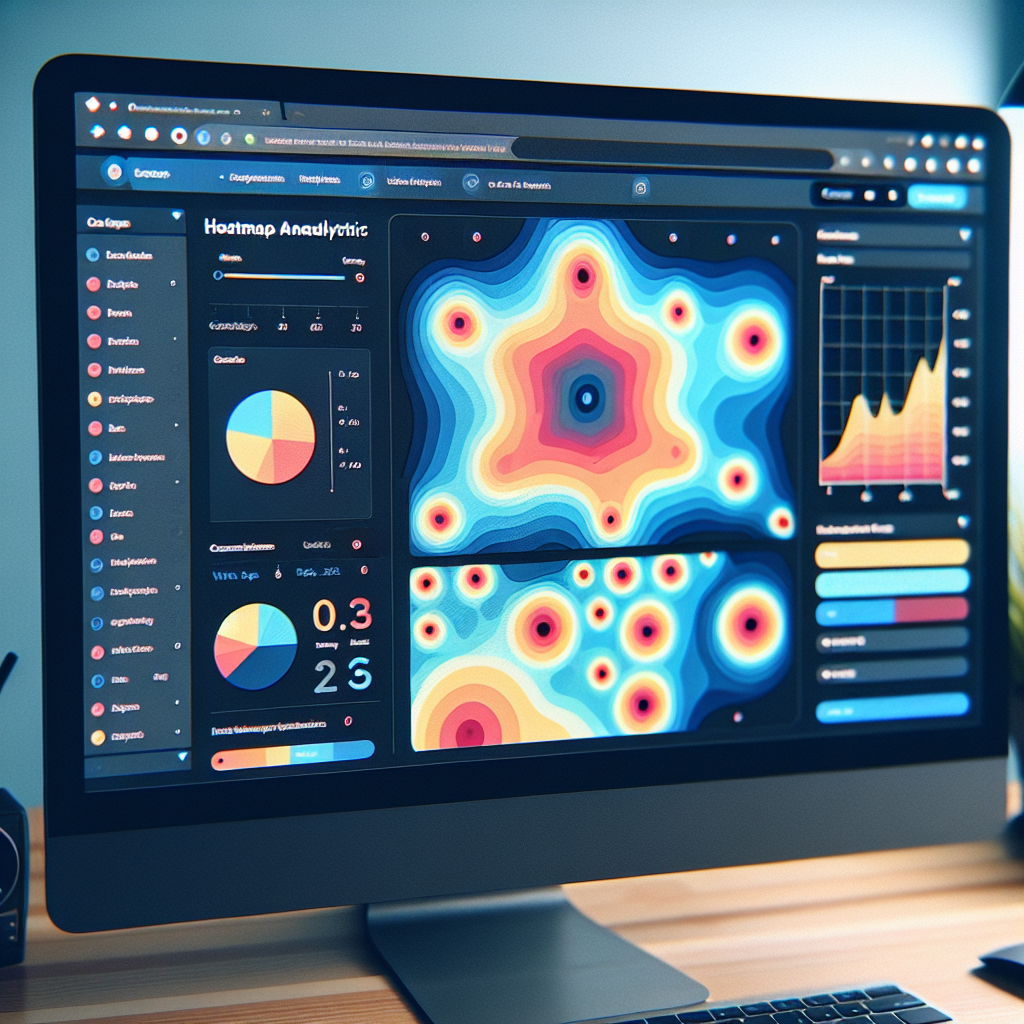
Heatmap plugins provide visual overviews of user actions, illustrating where attention focuses and how navigation flows. Like tracking foot traffic in a store, heatmaps guide strategic enhancements by showing your website’s interaction hotspots.
Insights gained from heatmaps allow you to optimize content placement, evaluate call-to-action effectiveness, and improve user journey paths.
Key Benefits of Heatmap Plugins
- Identify high and low interaction areas to optimize design.
- Reveal underperforming elements such as unnoticed buttons.
- Test and track design changes for improved user engagement.
Benefits of Using Heatmap Plugins on Your Site
Visualize User Interaction
Understand how users engage with your site by visualizing clicks, scroll depth, and focus areas. This data offers invaluable insights into design and content performance.
Improve Your Site Performance
Optimize Call-to-Actions
Use insights to relocate CTAs to high-interaction zones, enhancing effectiveness and increasing conversion rates.
Track User Clicks Effectively
Enhance Team Collaboration
Turn complex data into simple visuals, making it accessible to all team members and facilitating collaborative and informed decisions.
Empower Marketing & Design Teams
How Heatmap Plugins Work on WordPress
Understand the intricacies of heatmap plugins and boost your confidence to leverage them for better website performance.
Core Functionality
Heatmap plugins provide a visual guide to user interactions by tracking clicks, moves, and scrolls on your WordPress site. Deployed via seamless integration, these tools do not disrupt the user journey.
Once implemented, the plugins use cookies and JavaScript to gather user activity data. This data is processed into intuitive heatmaps that highlight key interaction zones with warm colors for popular spots and cooler colors for less visited areas.
Benefits to Your Website
- Unveil user behavior patterns to guide web design improvements.
- Make data-driven decisions for button placements and CTAs.
- Enhance user engagement and boost conversions through layout optimization.
Comparing Popular Heatmap Plugins for WordPress
Hotjar
Hotjar offers comprehensive features like session recordings, surveys, and feedback polls. Ideal for users looking for robust insights. Limitations on the free plan might be a downside for intense use.
- User-friendly interface
- Session recordings
- Surveys and polls
Crazy Egg
Crazy Egg offers heatmaps, A/B testing, scroll maps, and confetti reports. Ideal for e-commerce and those needing data-driven experiments.
- A/B testing capabilities
- Scroll maps and confetti reports
- External link data processing
Mouseflow
Mouseflow emphasizes session replays and funnel analysis. It’s great for understanding user journeys but requires premium plan for in-depth analytics.
- Session replays
- Funnel analysis
- Click and movement heatmaps
Budget-Friendly Alternatives
For those on a budget, consider free options like “Heatmap for WordPress” or “Analytics Cat” that provide essential features without the cost.
- Unlimited pageview records
- Real-time user interaction
- Straightforward integration
Selecting the Right Heatmap Plugin for Your Site
Choosing the right heatmap plugin is crucial for enhancing your site’s performance and user experience. Heatmaps provide insights into user interactions, helping optimize your content and layout for better engagement. However, the selection process can be overwhelming.
-
Define Your Goals
Identify objectives like user navigation improvement, conversion rate increase, or content interaction enhancement. Clarity will narrow your options.
-
Consider Privacy
Use privacy-focused WordPress heatmaps that manage user data responsibly, aligning with privacy regulations like GDPR.
-
Assess Plugin Features
Look for click maps, scroll maps, and session recordings. Comprehensive tracking options enhance understanding of user behavior.
-
Evaluate Ease of Use
Opt for plugins with smooth integration, intuitive UI, and excellent support. User reviews offer additional reassurance.
-
Cost Consideration
Balance between free and paid options. Consider if the features and support justify the investment.
Installing and Configuring Heatmap Plugins
Step-by-Step Guide
-
Navigate to your WordPress dashboard and select ‘Plugins’, then ‘Add New’.
-
Search for ‘lightweight heatmap plugin for WordPress’ to discover options like Hotjar or Mouseflow.
-
Install and activate your selected plugin.
-
Follow the setup wizard to connect your account or API key for data tracking.
Optimize Your Settings
Adjust settings such as tracking frequency and specify which pages to track. Ensure the visualization options (clicks, scrolls) suit your needs.
Verify functionality by navigating your site and checking the plugin dashboard for data updates.
Troubleshooting Common Heatmap Plugin Issues
1. Data Inaccuracy
Ensure your plugin is updated to the latest version to fix bugs and ensure compatibility with other updates.
Download Latest Update2. Slow Website Performance
Opt for a lightweight plugin and limit data collection to avoid slowing down your site.
Optimize Server Resources3. UI Disruptions
Select plugins with customizable settings to prevent overlay issues.
Find Flexible Plugins4. Privacy Compliance
Ensure your plugin adheres to privacy standards by providing consent options.
Learn About Privacy LawsAdvanced Tips for Maximizing Plugin Efficiency
Regular Updates and Maintenance
Keeping your plugins updated ensures optimal performance and security, adapting them to the latest WordPress releases and features.
Minimize Plugin Bloat
Conduct an audit to deactivate or remove redundant plugins, aiming to consolidate functionality with multipurpose plugins.
Performance Testing and Monitoring
Use tools like Google PageSpeed Insights to monitor plugin impact on speed and make necessary optimizations.
Optimize Plugin Settings
Fine-tune plugin settings like those in caching plugins to enhance speed and efficiency significantly.
User-Centric Innovations
Engage with users to collect feedback, leading to innovative enhancements and improved plugin interactions.
Leveraging Conversion Optimization Tools
Implement tools like OptinMonster for advanced targeting and A/B testing, refining conversion strategies and enhancing user experience.
Browse Categories:
You may also like

Enhance WordPress User Engagement with Top Heatmap Plugins
Explore the best heatmap plugins to enhance user engagement on WordPress, featuring top picks and privacy-focused solutions.

Finding the Best Plugins for User Behavior Tracking and 3D Viewing in WordPress
Discover top WordPress plugins for tracking user behavior and showcasing 3D content, boosting site interaction and engagement effortlessly.
Boost Engagement with WordPress Heatmap Plugins: Explore User Clicks and Beyond
Discover how WordPress heatmap plugins can revolutionize user engagement by tracking clicks and optimizing your website efficiently.