
Choosing the Best WordPress Heatmap Plugins to Enhance User Engagement
Introduction to Heatmap Plugins
Understanding user interactions on your website is crucial in today’s digital age. Discover how heatmap plugins for WordPress can transform user behavior data into actionable insights.
Visual Interaction Maps
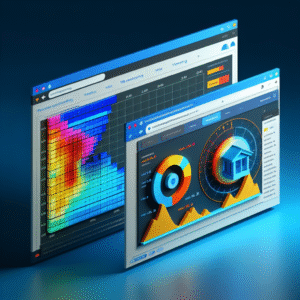
Heatmap plugins transform raw data into intuitive maps, showcasing clicks, taps, and scrolls to identify user preferences and behaviors.
Optimize User Experience
Leverage insights to enhance your website’s design flow and conversion rates by focusing on hot spots and addressing cold zones.
User-Friendly Tools
These plugins require no technical expertise, making data accessible for businesses of all sizes, empowering informed strategic improvements.
Benefits of Tracking User Clicks
Understanding where users click on your WordPress site provides invaluable insights into their behavior and preferences, allowing you to make data-driven decisions that can enhance both user experience and conversion rates.
Data-Driven Redesign
Identify which elements on your site are receiving the most attention, and redesign your layout to highlight key areas, streamlining navigation and improving user experience.
Enhanced Conversion Strategies
Optimize the most-clicked elements to drive conversions, like moving a high-engagement CTA to a more prominent position for better newsletter sign-ups or product purchases.
Top Heatmap Plugins for WordPress
Heatmap plugins are essential for understanding visitor behavior. Here, we compare the top plugins to help you choose the best one for your needs, from improving conversions to prioritizing privacy.
Crazy Egg
Offers comprehensive tools such as click and scroll tracking, A/B testing, and session recordings to optimize user experience and conversions.
Learn MoreHotjar
Provides session recordings, user feedback polls, and form analysis with data visualization for improved design and engagement.
Learn MoreLucky Orange
Features chat, real-time analytics, and conversion funnels, ideal for small to medium businesses seeking a more interactive user interface.
Learn MoreMouseflow
Emphasizes GDPR compliance, offering heatmaps and session replay, suitable for sites prioritizing data privacy.
Learn MoreInspectlet
Delivers JS logs and browser compatibility testing, capturing form analytics to reduce form abandonment.
Learn MoreSession Recording Plugins Explained
Discover how session recording complements heatmaps by providing in-depth user journey insights.
Real-time User Interaction
Gain a real-time view into how users navigate through your website. See beyond static heatmaps to the dynamic journey of every click, scroll, and hover.
Complete User Journey Insights
Understand the full user path, from landing on your site to checking out. This enables you to uncover navigation obstacles and enhance user pathways.
Amplified Analytical Capabilities
Integrate with WordPress seamlessly to boost analytical depth. Session recordings provide insights to optimize site performance and user satisfaction.

“Capturing interactions lets you transform data into actionable insights, enhancing UX and conversion rates dramatically.”
How to Choose the Right Plugins
Selecting the right plugins, particularly for tasks like heatmapping and session recording, can significantly improve your website’s user experience and technical performance. Here’s a guide to help you identify the best plugins that suit your needs:
Define Your Objectives
Clarify your objectives. Are you looking to analyze general user interaction for site improvement, or do you need detailed data for specific pages?
Compatibility and Support
Ensure the plugin is compatible with your current WordPress version. Look for backing by a strong development team that offers regular updates and responsive support.
Features and Functionality
Determine essential features. If you need detailed session recordings and heat maps, look for plugins that allow customization of tracking parameters and comprehensive reporting tools.
Performance Impact
Evaluate the plugin’s impact on site load times to maintain fast page response times, crucial for SEO and user retention.
Cost and Value
Analyze the pricing structure. Consider the return on investment the features will provide, with options for free versions or premium plans for advanced features.
Alternatives to Hotjar
Explore options like Mouseflow, Lucky Orange, or Inspectlet for alternatives that might offer niche features or pricing models that align more closely with your needs.
Installing and Configuring Plugins
Installing and configuring plugins such as a WordPress heatmap plugin can significantly enhance your ability to track user behavior and understand your website’s performance. Follow these step-by-step instructions to quickly get started and receive accurate data.
Choose Your Heatmap Plugin
Start by selecting a heatmap plugin that best suits your needs. Popular options include Heatmap for WordPress, Hotjar, and Crazy Egg. Consider factors like features, user reviews, and pricing.
Install the Plugin
- Navigate to your WordPress dashboard, and hover over ‘Plugins.’
- Click on ‘Add New.’
- In the search bar, type in the name of your chosen heatmap plugin.
- Once you find it, click ‘Install Now.’
- After installation, click ‘Activate’ to enable the plugin on your website.
Configure the Plugin
Each plugin may have unique settings, so explore the settings dashboard of your particular heatmap plugin. Generally, you’ll need to:
- Connect the plugin to your account with the service provider, often involving an API key or user sign-in.
- Set your tracking preferences, such as choosing which pages to track.
- Enable or disable features like session recordings or real-time data tracking.
Verify Installation
Once configured, test the plugin to ensure it is gathering data correctly.
- Visit some pages you’ve configured for tracking to confirm that visits are being recorded.
- Check the plugin dashboard to see if the heatmap visualizations and data are being updated accurately.
Begin Analyzing
Now that your plugin is correctly set up, start analyzing the user behavior data. Look for interaction trends and potential drop-off points to enhance usability and engagement.
Integrating Heatmaps with Google Analytics
Enhance your data insights with a combined approach to user behavior tracking.
The Power of Integration
By combining heatmap plugins with Google Analytics, you enrich your data insights. While Google Analytics offers quantitative data, heatmaps provide qualitative visual insights on user interactions.
- Visualize user interactions with plugins like Hotjar or Crazy Egg.
- Understand user navigation and engagement effectively.
- Ensure privacy with GDPR-compliant plugins.
Benefits of Heatmap Analytics
Integrating both tools provides a comprehensive look at user interactions, highlighting content engagement and potential drop-off points, thus allowing better UX optimization and improving conversion rates.
Privacy and Data Protection Considerations
In an era where data privacy is increasingly prioritized, using a WordPress heatmap plugin poses unique challenges and responsibilities. Heatmap and session recording tools provide invaluable insights into user behavior, helping to refine user experience and optimize website performance. However, the capture and storage of user data come with privacy implications that need to be addressed to protect your visitors and comply with legal standards.
Anonymization & Encryption
Choose plugins that offer data anonymization and encryption to protect user information.
Customizable Data Collection
Opt for solutions that allow you to exclude sensitive data from being recorded or analyzed.
Regulatory Compliance
Ensure compliance with GDPR, CCPA, and other data privacy regulations.
Transparency and Communication
Clearly inform users about data usage, and provide options to opt-in or opt-out.
By focusing on privacy and being transparent in your data protection strategies, you can harness the power of heatmaps to improve user experience while maintaining the trust and confidence of your visitors.
Browse Categories:
You may also like

Enhance User Engagement with the Best WordPress Heatmap and Click Tracking Plugins
Discover the best plugins to track user interaction and enhance engagement on your WordPress site with heatmaps and click tracking…
Boost User Experience with Essential WordPress Heatmap and 3D Plugins
Learn how WordPress heatmap and 3D plugins can dramatically enhance your site's user experience, driving engagement and converting visitor actions.

Enhance Your WordPress Site: Top Plugins for User Interaction and Experience
Discover top WordPress plugins to improve user interaction and experience, including heatmaps, session recordings, and 3D viewers.