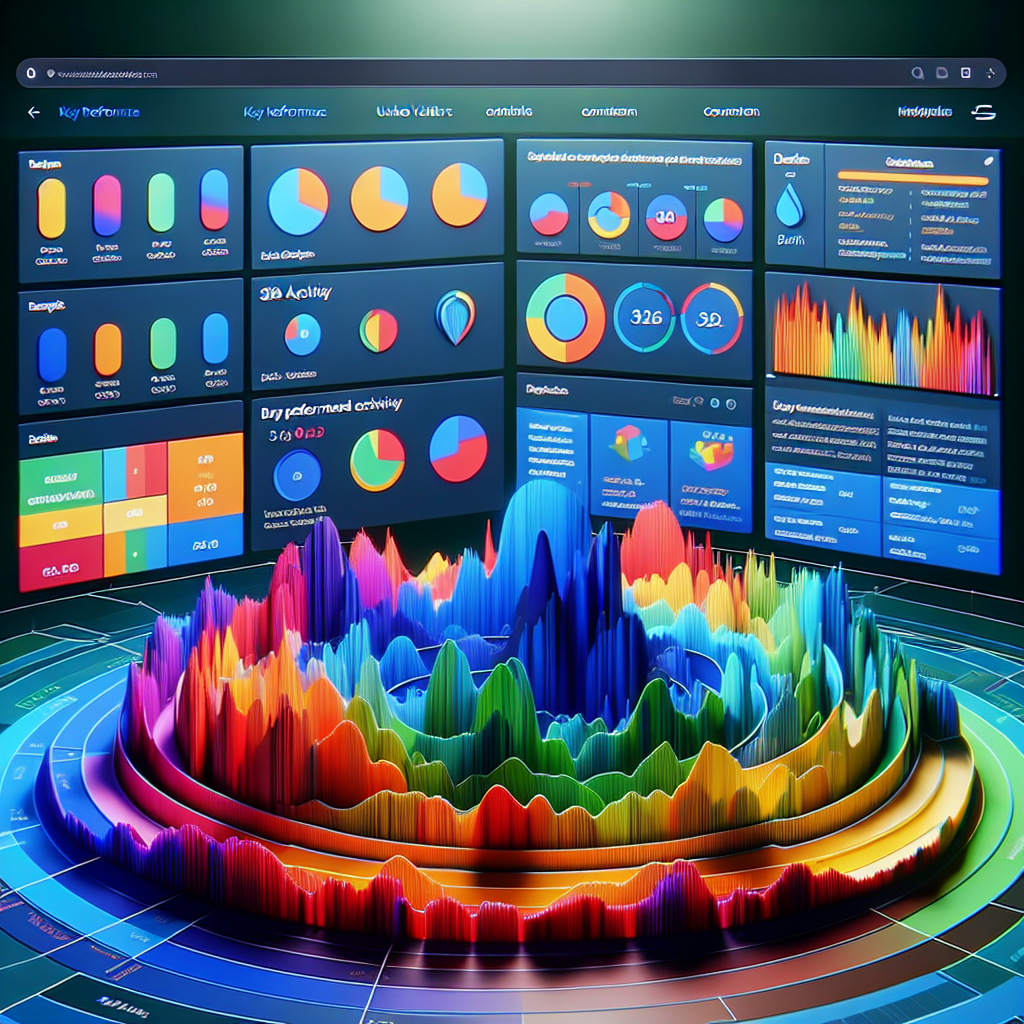
Boost User Engagement with the Right WordPress Heatmap Plugins
Introduction to Heatmap Plugins
In the ever-evolving digital landscape, understanding how users interact with your website is crucial for optimizing the user experience and improving engagement. Heatmap plugins provide a visual representation of user interaction on different sections of your web pages, showcasing attention through color-coded graphics.
- WordPress heatmap plugins track and visualize visitor interactions effortlessly.
- Includes features like click tracking, scroll depth measurement, and attention maps.
- Helps identify high-interest zones and potential problem areas.

Benefits of Using Heatmap Plugins
Integrating heatmap plugins into your WordPress site can transform the way you understand user behavior and enhance your website’s performance. Heatmaps provide visual representations of where users are clicking, scrolling, and engaging the most on your site, unveiling key insights into the user journey.
By leveraging this information, you can optimize your layout, design, and content placement to enhance user experience and boost conversion rates.
Imagine a scenario where you learn that users are repeatedly clicking on a non-clickable element. Such insights can lead you to transform that high-interest area into a valuable link, improving engagement and conversions.
Learn MoreHeatmaps reveal user interaction patterns, enabling a more intuitive website structure.
Identify non-clickable elements users mistake for links and convert them into interactive components.
Refine content that resonates with your audience, focusing on effective engagement strategies.
Top Heatmap Plugins for WordPress
Unleash the power of insights with these essential heatmap plugins to optimize your website performance effortlessly.
Hotjar
Provides comprehensive heatmapping, user recordings, and conversion funnels.
- Pros: Intuitive interface, comprehensive features
- Cons: Paid plans can be pricey
Crazy Egg
Offers easy-to-interpret visuals, scroll maps, and overlay reports.
- Pros: Detailed reports, robust tools
- Cons: Can be overwhelming for beginners
Mouseflow
Real-time session replays with competitive pricing.
- Pros: Cost-effective, rich data
- Cons: Limited integrations
Lucky Orange
All-in-one tool including heatmaps, live chat, and session recordings.
- Pros: Multi-functional, user-friendly
- Cons: Costs may increase with usage
WP Heatmaps
Free and simple, perfect for beginners needing basic insights.
- Pros: Free, simple setup
- Cons: Lacks advanced features
Plugin Installation and Setup Guide
Installing and setting up a heatmap plugin on your WordPress site can offer valuable insights into user behavior, showing you exactly where visitors are clicking and interacting the most. This guide will walk you through a straightforward process to get your heatmap plugin up and running, enabling you to leverage these insights to enhance your site’s engagement and conversion rates.
Step 1: Choose a Privacy-Focused Plugin
Start by selecting a heatmap plugin that aligns with your privacy standards. Plugins like Crazy Egg or Hotjar prioritize user privacy, ensuring compliance with GDPR and other privacy regulations.
Step 2: Installation
Log into your WordPress dashboard and navigate to ‘Plugins’ > ‘Add New’. Search for your chosen heatmap plugin by name, click ‘Install Now’, and then ‘Activate’.
Step 3: Initial Setup
Upon activation, follow the setup wizard or settings page to configure your plugin. Review privacy settings to ensure data anonymization and user consent.
Step 4: Customize Your Heatmap Settings
Adjust data collection parameters, choose which pages to track, and define goals. Exclude unnecessary pages or elements as needed.
Step 5: Verify Setup
Ensure the plugin works correctly by using modes like live preview or real-time testing. Make any needed adjustments for accurate tracking.
Step 6: Analyze and Optimize
Review heatmap data for insights to boost engagement. Identify trends and optimize your website layout and content accordingly.
Addressing Privacy Concerns
Explore privacy-focused solutions for using heatmap plugins on your WordPress site without compromising user trust and privacy.
Why Privacy Matters
Heatmap plugins offer insights into user behavior but also raise privacy concerns. Users are increasingly vigilant about their data privacy, especially with regulations like GDPR and CCPA in place.
-
Ensure data anonymization and user consent for ethical data usage.
-
Choose tools that respect and protect user privacy.
Privacy-Focused Solutions
Select privacy-focused tools that ensure compliance without sacrificing data utility.
-
Matomo: Self-hosted analytics solution offering control and privacy.
-
Fathom Analytics: Provides simple, privacy-first analytics without personal data processing.
Case Studies and Success Stories
Uncover real-world results achieved by businesses using heatmap plugins to improve conversions and boost engagement.
XYZ Fashion
XYZ Fashion utilized heatmap insights to overhaul their customer journey. By identifying drop-off points, they revamped their homepage, resulting in a 25% increase in conversions within months.
ABC Resorts
ABC Resorts optimized their booking process by clarifying room amenities through heatmap analysis, achieving a 30% rise in bookings after refining their approach based on user behavior tracking.
Troubleshooting Common Issues
Installation Errors
Ensure compatibility with your current WordPress version and check your hosting environment settings. These could impede installation.
- Ensure WordPress version compatibility
- Check server resource availability
Data Not Displaying
Make sure the plugin is activated and all necessary permissions or scripts are added. Clear your website’s cache if needed.
- Check plugin activation
- Confirm scripts in site’s header/footer
- Clear cache
Inaccurate Heatmaps
Evaluate the data collection time frame and look for any conflicting plugins that might disrupt the plugin’s functionality.
- Review data collection periods
- Identify and disable conflicting plugins
Performance Issues
Verify plugin optimization and consider reducing data update frequency and tracked users to enhance performance.
- Ensure plugin is lightweight
- Optimize configuration settings
Security Concerns
Ensure compliance with data privacy regulations like GDPR. Utilize anonymization features for added security.
- Check GDPR compliance
- Enable anonymization options
- Disable tracking on specific pages
Future Trends in Heatmap Technology
AI & Machine Learning Integration
Enhancing the accuracy and predictive capabilities of heatmaps, providing deeper insights into user behavior patterns.
Real-time Heatmapping
Allows businesses to make immediate decisions about content and interface, crucial for dynamic platforms.
Mobile-first Solutions
Optimized heatmaps for mobile devices, understanding users’ touch interactions for better mobile UX.
Integration with Analytics
Combining heatmaps with analytics for a comprehensive view of user interaction, enhancing UX strategy.
Browse Categories:
You may also like
How to Enhance User Experience with WordPress Heatmap and Tracking Plugins
Discover how WordPress heatmap and tracking plugins enhance user experience and optimize website performance with practical tips and tools.

Enhance Your WordPress Site with User Click Tracking and Heatmaps
Discover how to enhance your WordPress site using user click tracking and heatmaps, improve user experience, and boost conversions.

Upgrade Your WordPress with Click and Activity Tracking: A Guide for Site Owners
Enhance your WordPress site with effective user click tracking and activity recording plugins to improve user experience and engagement.