
Enhancing User Experience: The Best WordPress Heatmap and Behavior Tracking Plugins
Understanding Heatmaps and Their Benefits
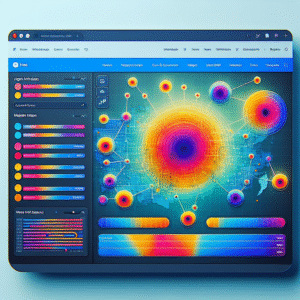
Heatmaps offer a dynamic visual approach to understanding user interactions on your site, highlighting areas of interest with color gradients. Utilize this data to optimize layout and focus user attention effectively.
-
Quick Insights: Instantly visualize user interaction patterns such as clicks and scrolls.
-
Content Optimization: Determine popular sections to strategically place important content and CTAs.
-
Improving User Experience: Identify and adjust friction points to streamline navigation.
-
A/B Testing Support: Gain insights to enhance user interaction through effective testing.
For WordPress, integrating a heatmap plugin aids in efficiently gathering interaction data, complementing analytics tools to enhance engagement and conversion.
Get StartedWhy Track User Interaction?
Enhance User Experience
Tracking user interaction is pivotal for enhancing the user experience on any website, especially for WordPress users. Understanding how visitors engage allows you to make data-informed decisions that significantly boost satisfaction and conversion rates.
Identify what captures interest.
Optimize layout and content.
Boost conversion rates.
Data-Driven Decisions
By using plugins to track user behavior, you can pinpoint which areas of your site need improvement. Such data helps optimize site functionalities to better serve your audience and foster strategic growth.
Anticipate user needs.
Identify and fix pain points.
Create a seamless journey.
Top Heatmap Plugins for WordPress
Explore the leading heatmap plugins that can transform your WordPress site. These tools are essential for tracking user behavior, enhancing user experience, and ultimately improving conversions.
Hotjar
Known for its comprehensive heatmap and session recording capabilities, Hotjar provides a well-rounded approach to user behavior analysis with features like form analysis and feedback polls.
Crazy Egg
Offers a suite of tools including heatmaps, scrollmaps, and confetti reports, allowing for detailed visitor segmentation and UI optimization for better conversion rates.
Mouseflow
Delivers heatmaps and session replay with funnel analytics to identify drop-off points in the conversion process, offering actionable insights for improvement.
Lucky Orange
Features dynamic heatmaps and chat functionality with an easy-to-use dashboard, helping beginners understand complex data visually.
WP Hotellinx
Designed specifically for WordPress, WP Hotellinx highlights user hotspots and delivers insights without overwhelming data, perfect for seamless integration with any theme.
Lightweight Heatmap Plugins
For small businesses and bloggers who prioritize site performance, finding a lightweight heatmap plugin for WordPress is essential. These plugins offer insights into user behavior without compromising website speed or load times, which are critical for user engagement and SEO performance.
Mouseflow
Mouseflow offers a lightweight version ideal for small WordPress sites, enabling you to track user movements, clicks, and scrolling activity efficiently.
Hotjar
Tailor Hotjar to a lightweight setup by selecting only essential features, providing a streamlined experience with insightful heatmaps that are resource-light.
Crazy Egg
Crazy Egg offers simplicity and effectiveness, perfect for smaller sites with optimized performance for visualizing user interactions without slowing down.
Inspectlet
Inspectlet’s simplified version provides basic heatmap functionality, ideal for WordPress sites balancing functionality and weight.
Privacy-Focused Heatmap Plugins
In an era where data privacy is becoming increasingly important, businesses need to ensure that their digital strategies comply with user expectations and legal requirements.
-
Visitor Analytics: A popular choice among privacy-conscious businesses, offering cookie-less tracking and anonymized IPs.
-
Matomo: An open-source platform providing full data ownership and heatmap functionality with no third-party involvement.
Comparing Free and Premium Options
Free Heatmap Plugins
- Ideal for new users and tight budgets
- Basic features: click data and scroll tracking
- Example: Crazy Egg for entry-level tracking
- Potential limitations in detail and integration
Premium Heatmap Plugins
- Advanced features for serious analysis
- Includes session recordings and A/B testing
- Examples: Hotjar, Mouseflow
- Better for maximizing conversions and insights
Your choice between free or premium heatmap plugins should align with your needs and budget. Free options provide a solid start, while premium plugins offer superior insights crucial for enhancing conversions.
Contact Us for More InsightsGuide to Installing and Configuring Plugins
Installing and configuring heatmap plugins on your WordPress site is a straightforward process that can provide valuable insights into user behavior. Here’s a step-by-step guide to help you get started:
Choose the Right Plugin
Start by selecting a heatmap plugin that fits your needs. Popular choices include Hotjar, Crazy Egg, and Lucky Orange.
Install the Plugin
Navigate to your WordPress admin panel, click ‘Plugins,’ select ‘Add New,’ search for your plugin, click ‘Install,’ and then ‘Activate.’
Configure the Plugin
After activation, head to plugin settings, follow the setup guide, connect using an API key, and customize settings.
Monitor Heatmap Data
Once configured, let the plugin gather data, then analyze heatmap reports to understand user interactions thoroughly.
Iterate Based on Insights
Adapt site design and content based on heatmap insights to continuously optimize user experience.
Troubleshooting Common Issues
Empower yourself with solutions to common issues encountered while using heatmap plugins.
Plugin Conflicts & Errors
Deactivate all plugins except the heatmap plugin to check for conflicts. Reactivate one by one to find the culprit and consider alternatives or contact developers if needed.
JavaScript Errors
Use your browser’s developer console to identify JavaScript errors. Searching error messages online can provide solutions or community support tips.
Data Not Appearing
Ensure tracking code is correctly installed in the HTML, often header or footer. Confirm it’s included on every relevant page.
Server and Performance Issues
Check your hosting plan’s resource capacity. Optimize performance using caching solutions and a CDN if necessary.
WordPress Troubleshooting
Ensure theme compatibility and updates. Use a staging site to test changes before applying them live to avoid conflicts.
Browse Categories:
You may also like

Enhance User Experience with the Best WordPress Heatmap and Tracking Plugins
Discover top WordPress plugins to improve user experience, track behavior, and showcase 3D models, enhancing website engagement and performance.
Top WordPress Heatmap and User Tracking Plugins to Enhance Your Site’s UX
Enhance your website's user experience with our top picks for WordPress heatmap and user tracking plugins, featuring tips and real-world…

Enhancing User Experience on WordPress: Best Plugins for Click Tracking and 3D Viewing
Discover the best WordPress plugins for enhancing user engagement, including click tracking and 3D visualization tools.