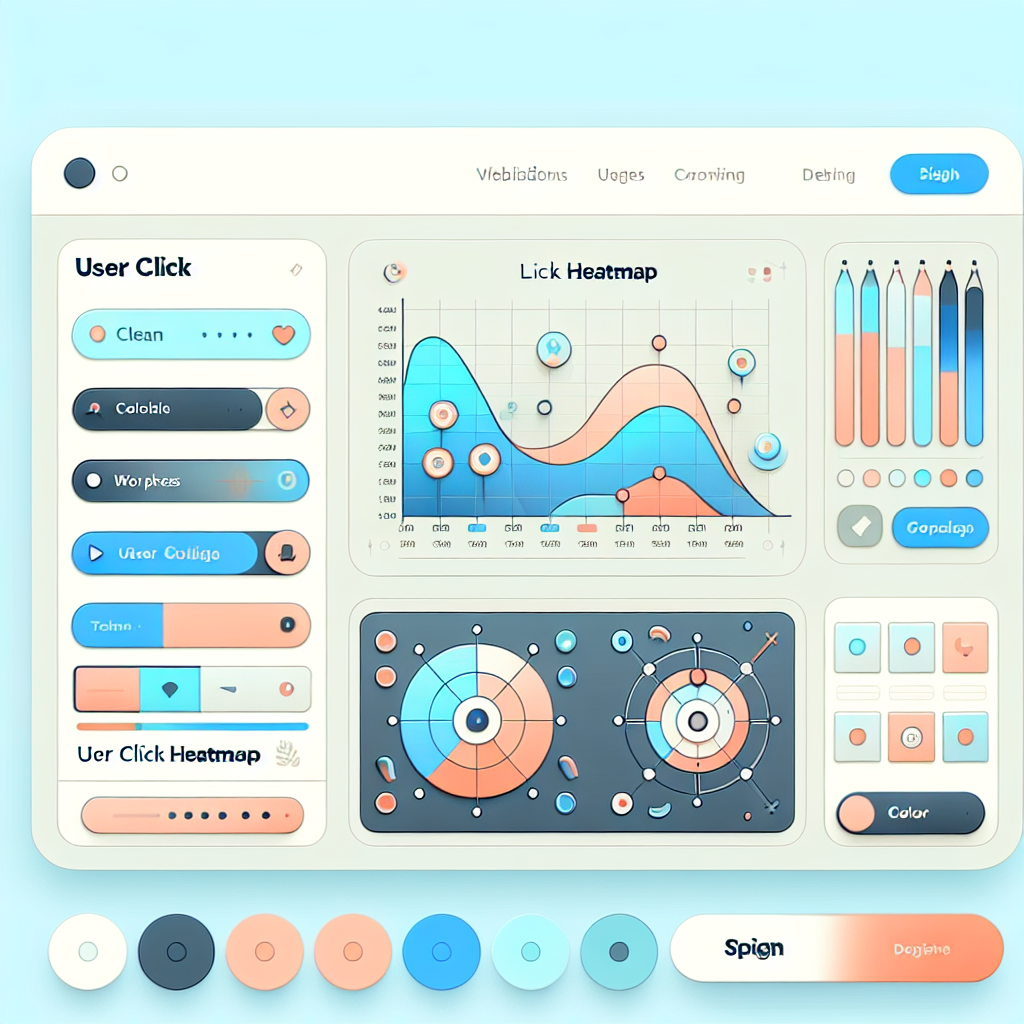
The Best WordPress Heatmap Plugins to Enhance User Engagement
Introduction to Heatmap Plugins
Heatmap plugins are essential for understanding user behavior, setting the stage for enhanced user experience and improved conversions.
Why Use Heatmap Plugins?
Heatmap plugins offer visual representations of user interactions, showing where users click, scroll, and spend most of their time. For WordPress users, these plugins integrate smoothly into your dashboard, providing actionable insights.
Optimize with Data-Driven Insights
Discover the power of heatmaps in understanding user pathways. Optimize product placements and CTAs with detailed data, transforming your web strategy with clear user engagement insights.
Why Use Heatmaps?
Heatmaps are powerful tools that provide visual insights into how users interact with your website. By aggregating data on clicks, scrolls, and mouse movements, heatmaps transform raw data into a visual representation that is easy to interpret. This makes it simpler to identify which areas of your site draw the most attention and where engagement falls flat.
This practical tool can guide you to position important elements like calls-to-action more strategically. For instance, discovering that a ‘Buy Now’ button placed above the fold attracts more clicks can help drive higher conversion rates.
Contact UsTop WordPress Heatmap Plugins
Hotjar
Offers a comprehensive set of tools including heatmaps, session recordings, and feedback polls. Visualizes user clicks, taps, and scrolling behavior.
Learn MoreCrazy Egg
Provides in-depth click tracking, scroll maps, and user session replays. A favorite for refining user pathways on websites.
Learn MoreMouseflow
Real-time heatmap generation and extensive session replay features for detailed user interaction analysis.
Learn MoreLucky Orange
Offers a free trial with features like heatmaps, chat, and conversion funnels. Ideal for small businesses seeking initial insights.
Learn MorePlerdy
Combines heatmaps with SEO alerts for onsite and user interaction analysis, aiding website and SEO optimization.
Learn MoreInstallation and Configuration
-
Choose a Plugin
Select a heatmap plugin that fits your needs, especially considering privacy-focused options.
-
Installing the Plugin
Log into your WordPress admin panel, navigate to ‘Plugins’, then ‘Add New’. Search for your preferred plugin and click ‘Install Now’.
-
Plugin Configuration
Activate the plugin and configure it according to the instructions provided. You may need an account or API key.
-
Setting Up Heatmaps
Configure the plugin to select specific pages or the entire site for monitoring user interactions.
-
Check Privacy Settings
Review settings to ensure compliance with privacy policies and laws such as GDPR.
-
Begin Tracking
Initiate tracking and analyze data through the plugin’s dashboard to optimize your site.
Interpreting User Data
Heatmaps provide a visual representation of user interaction on your website, showing where visitors click, move, and scroll the most. Understanding these patterns can greatly assist in optimizing your site for a better user experience and conversion rates.
-
Identify Hot and Cold Spots
Hot spots indicate areas of high user engagement, while cold spots show neglected areas. Adjust positioning to optimize attention.
-
Understand Click Significance
Use plugins to track where users click the most, indicating either clear navigation paths or potential confusion.
-
Analyze Scroll Depth
Check if crucial content is missed due to early scroll drop-offs, and consider layout adjustments to improve retention.
Visualize and Optimize
Combine heatmaps with user activity recordings for a comprehensive understanding of user behavior to inform site improvements.
Troubleshooting Common Issues
Plugin Conflicts & Errors
Identify conflicting plugins or themes by deactivating them and switching to a default theme. Re-enable them individually to find the issue source.
Inaccurate Data
Avoid caching issues by excluding dynamic pages and review settings to ensure accurate data tracking.
Slow Site Performance
Update your plugin for performance boosts or consult documentation for optimization strategies.
Data Privacy Concerns
Ensure compliance with GDPR by using anonymized data collection and updating your privacy policy accordingly.
Enhancing User Experience
Explore expert strategies for leveraging heatmap insights to enhance user experience on WordPress sites.
Heatmap Insights
Understand how visitors interact using heatmaps for optimizing layout and content placement.
Session Recording
Utilize plugins like “Hotjar” or “Crazy Egg” to track real-time user behavior with session recordings and more.
Amplifying Plugins
Combine heatmap data with plugins focusing on speed and navigation to enhance user experience.
Continuous Adaptation
Adapt and optimize your WordPress site based on evolving user behavior insights.
Conclusion and Next Steps
As we wrap up our exploration into optimizing websites for user engagement, it’s time to reflect on the key strategies we discussed. Harnessing the power of the best WordPress plugins of 2025 can offer a significant advantage in enhancing your site’s functionality and user experience.
These plugins are designed to not only improve site performance and user engagement but also streamline content management seamlessly. Additionally, exploring an alternative to Hotjar for WordPress can provide you with unique insights into visitor behavior, helping you make data-driven decisions that improve user satisfaction and increase retention.
Next Steps:
- Evaluate your current website setup to identify areas for engagement improvement.
- Consider how the discussed plugins and tools can address these gaps.
- Experiment with new plugins and test different features.
- Stay informed about the latest plugin developments and trends.
Your website is the digital face of your brand, so investing time in optimizing it for engagement is crucial. Start implementing these strategies today and watch as your website traffic and user satisfaction grow over time.
Browse Categories:
You may also like
Maximizing User Experience with WordPress: The Power of User Interaction Tracking Plugins
Discover top WordPress plugins to enhance user experience through sophisticated interaction tracking and future-proofing techniques.

Enhancing User Engagement with the Best WordPress User Click Tracking and 3D Viewer Plugins
Discover essential WordPress plugins to improve user engagement with heatmaps and 3D viewers, the keys to enhanced site performance.

Enhance Your WordPress Site: The Best Plugins for User Interaction and 3D Display
Discover top WordPress plugins to boost user interaction and showcase 3D content, enhancing both user experience and site effectiveness.