
Revolutionize Your Site with WordPress Heatmap Plugins: Track User Behavior for Success
Introduction to WordPress Heatmap Plugins
In the vast digital landscape, understanding how users interact with your website is crucial for optimizing the user experience and boosting engagement. This is where WordPress heatmap plugins come into play. These plugins visually represent data on how users navigate and interact with your site by tracking clicks, scrolling patterns, and mouse movements. The resulting ‘heatmaps’ provide insights into which areas of your web pages attract the most attention and which are largely ignored.
Imagine being able to pinpoint exactly where your visitors hover the most or which call-to-action buttons trigger the highest interaction rates. This ability to track user behavior offers invaluable opportunities to refine your website design, prioritize important content, and ultimately enhance the overall effectiveness of your site.
For instance, a business could discover through a heatmap that users rarely scroll beyond the first screen of their homepage. In response, the business might rearrange its content, allowing critical information to be positioned within the most viewed sections, thereby increasing user engagement and conversion rates.
Incorporating a WordPress heatmap plugin into your digital toolkit doesn’t just give you raw data; it provides actionable insights that can transform how you approach web design and user engagement strategies. Whether you’re running a bustling ecommerce site or maintaining a personal blog, leveraging these insights can significantly impact your success in the competitive online arena.
Track User Behavior
Discover how users interact with your site and make informed decisions to enhance your web presence.
Understanding User Behavior with Heatmaps
Heatmaps provide visual insight into visitor engagement, helping you optimize website layouts and content by highlighting areas of user interaction.
Interactive Visual Insights
Heatmaps showcase user interactions through visual indicators for clicks, scrolls, and hover patterns. These insights reveal the effectiveness of your CTAs and inform layout improvements.
- Track user clicks for enhanced UX designs
- Visualize scrolling and hovering behaviors
- Identify hotspots for improved layout positioning
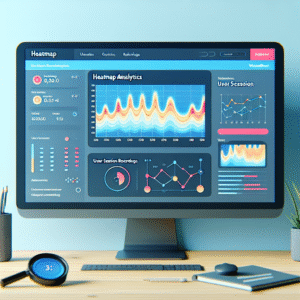
Heatmap Visualization
An example UI of user behavior heat mapping.
The Benefits of Heatmap Analysis
Visual User Interaction
Heatmaps visually represent clicks, scrolls, and hovers, allowing you to easily identify user behavior on your site. Optimize your layout by focusing on hotspots that attract attention.
Enhanced Design Decisions
Pinpoint which calls-to-action are ignored or which content holds users’ attention, leading to informed adjustments that boost engagement and conversions.
Seamless Integration
Utilize WordPress plugins for heatmaps and session recordings. Streamline analytics with tools that require no coding skills and reveal deep insights into visitor paths.
Top Heatmap Plugins for WordPress
For website owners looking to enhance their understanding of user interactions, choosing the right WordPress heatmap plugin can be pivotal. These tools visualize where visitors click, how far they scroll, and what grabs their attention, enabling layout and content optimization effectively.
Hotjar
Comprehensive user feedback and analysis tools offering session recordings and surveys. Free basic version available for small sites.
Learn MoreCrazy Egg
Offers heatmaps, scrollmaps, and confetti reports with split testing tools. Try free for 30 days without financial commitment.
Learn MoreMouseflow
Provides heatmap analytics, funnel analysis, and session replay features. Starter plan available for cost-effective analytics.
Learn MoreLucky Orange
Features dynamic heatmaps, form analytics, and chat tools. Offers a free trial to determine suitability.
Learn MoreWP Heatmaps
Designed for WordPress with an intuitive interface ideal for beginners. Free plugin offering click and scroll heatmaps.
Learn MoreAddressing Privacy Concerns
Understanding and addressing privacy concerns are crucial for businesses that aim to build trust while tracking user behavior. Here are key insights and solutions to enhance privacy and encourage responsible plugin use.
Anonymized Data
Utilize tools that offer anonymized data collection to assure users their identities are protected, even when behavioral insights are drawn.
User Consent
Implement clear data policies and obtain user consent before collecting data to ensure transparency and build a trustworthy relationship.
Built-in Privacy
Choose plugins with built-in privacy features, like local data processing, to safeguard against external breaches and allow disabling specific tracking.
Heatmaps vs. Session Recordings
Heatmaps
Visual representation of user interactions, highlighting areas of most attention. Use colors to indicate the volume of engagement such as clicks and scrolls.
- Quick, aggregated insights.
- Highlights hot spots and user navigation paths.
- Useful for optimizing page layouts and CTAs.
Session Recordings
Offers detailed, real-time videos of user sessions, capturing mouse movements, clicks, and hesitations.
- Granular, individual insights.
- Identifies usability issues and friction points.
- Ideal for solving specific user experience problems.
Both tools are vital for a comprehensive UX strategy, often used together to understand user behavior better.
Learn MoreChoosing the Right Plugin for Your Site
Identify Core Functionality
To enhance conversions on your WordPress site, explore plugins like OptinMonster or Thrive Leads, known for creating excellent opt-in forms and landing pages.
Compatibility and Support
Ensure the plugin is compatible with your current WordPress version to avoid disruptions, and look for frequent updates backed by reliable developers.
Leverage User Insights
Gain insights with plugins like MonsterInsights for data-driven decisions to enhance user experience and engagement.
Consider Reviews & Support
Trust user reviews and ratings, ensuring the plugin you choose has comprehensive support for any issues you might encounter.
Why Consider Compatibility?
- Ensures smooth site performance.
- Prevents version conflicts.
- Provides better security features.
Implementing and Integrating Heatmap Plugins
Installing and integrating a heatmap plugin on your WordPress site is a straightforward process that doesn’t require extensive technical knowledge. Follow these steps to seamlessly enhance your site analytics with a lightweight heatmap plugin for WordPress.
Choose the Right Plugin
Begin by selecting a heatmap plugin that suits your needs. If you’re looking for an alternative to Hotjar for WordPress, consider options like “Crazy Egg” or “Mouseflow,” which both offer comprehensive heatmapping features.
Install the Plugin
- Log in to your WordPress admin dashboard.
- Navigate to ‘Plugins’ on the sidebar, then click on ‘Add New’.
- In the search bar, type the name of the plugin you wish to install.
- Once you find the plugin, click ‘Install Now’ and then ‘Activate’ to enable it on your site.
Configure the Plugin Settings
After activation, visit the plugin’s settings page, which you can usually find under the ‘Settings’ menu or listed separately in the sidebar.
- Input your account details if the plugin requires syncing with an external account.
- Specify the pages you wish to track with heatmaps.
- Adjust any other settings to fit your specific requirements.
Test the Plugin
Confirm that the plugin is collecting data correctly.
- Visit one of the tracked pages and perform a few user interactions.
- Check back on the plugin’s dashboard to see if these actions appear in the heatmap data.
- Adjust any settings if the data doesn’t reflect your expectations.
Analyze the Data
Once your plugin is up and running, review the heatmap data to gain insights.
- Look for patterns in user behavior.
- Use these insights to make data-driven decisions to optimize your site layout.
Browse Categories:
You may also like

Maximizing User Experience: The Essential WordPress Plugins for Tracking and Engagement
Discover essential WordPress plugins to boost user engagement and track behavior, ensuring your site's success with strategic insights.
Unlocking User Insights: The Best WordPress Heatmap Plugins for 2025
Unlock insights with the best WordPress heatmap plugins in 2025. Enhance user experience and uncover site strategies with our top…
The Ultimate Guide to Tracking User Behavior on WordPress
Discover the best tools and practices for tracking user behavior on WordPress to enhance user experience and site performance.