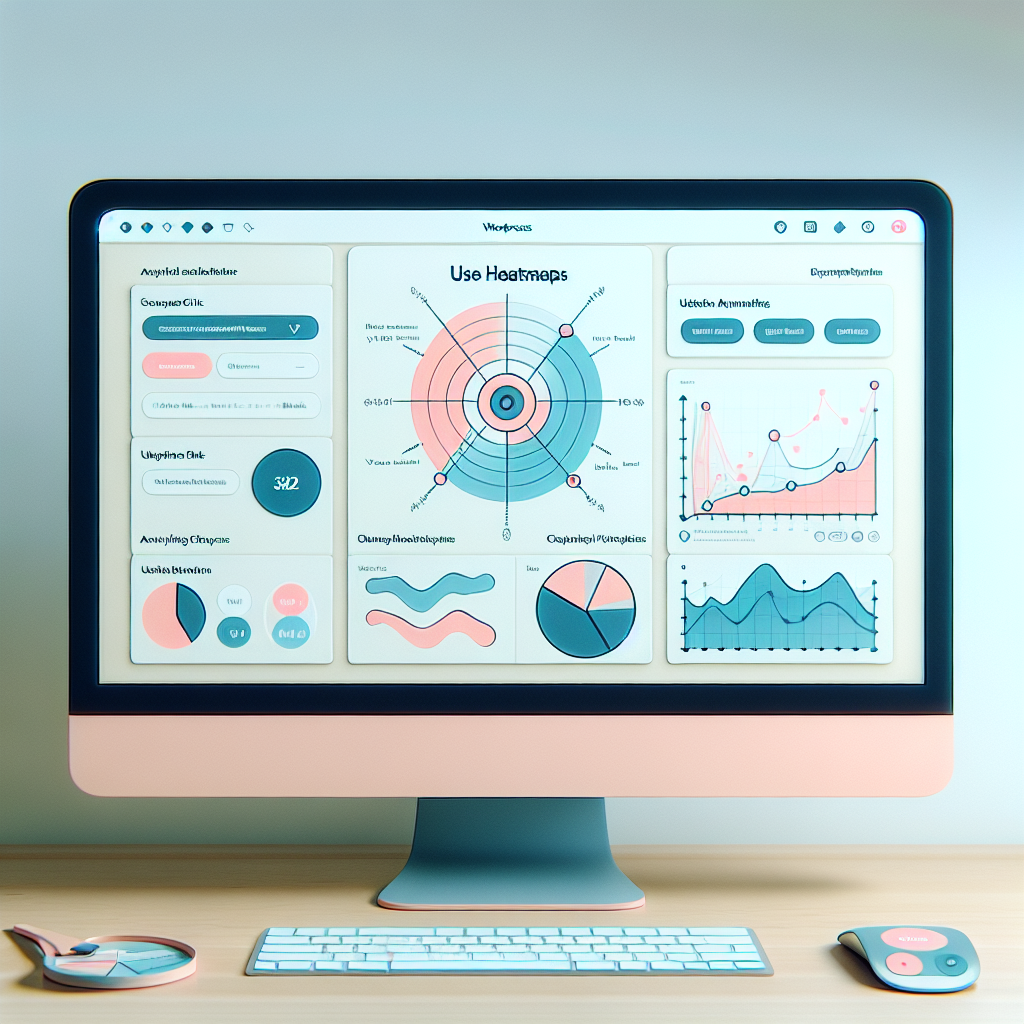
The Ultimate Guide to User Click Tracking for WordPress Success
Understanding User Click Tracking
In the digital age, understanding how users interact with your website is crucial for optimizing performance and enhancing user experience. This is where user click tracking comes into play. At its core, click tracking records every instance a user clicks on your site, offering insights into user behavior patterns and preferences.
This data can act as a foundation for informed decision-making and strategic improvements. By using click tracking, businesses can identify which parts of their website are most engaging, which call-to-action buttons are effective, and which pages lead to conversions.
- A high click-through rate suggests successful user engagement.
- A low rate could indicate areas in need of optimization.
For those utilizing WordPress, integrating a user click tracking plugin is an accessible way to gather this valuable data. These plugins offer seamless integration into your WordPress site, allowing you to quickly track user behavior without needing extensive technical expertise.
WordPress User Click Tracking Plugin
A popular choice is the ‘WordPress User Click Tracking Plugin’, which simplifies the process of monitoring clicks and helps you gain actionable insights efficiently.
Learn MoreEnhance User Engagement
By taking advantage of click tracking, you set the stage for a more effective user engagement strategy. Equip yourself with the knowledge needed to enhance your website’s design and functionality.
Essential User Click Tracking Tools
MonsterInsights
An all-in-one plugin known for enhancing conversion tracking through integration with Google Analytics. It helps identify key areas that engage visitors.
Hotjar
Offers visual heatmaps and session recordings, providing a clear picture of user interactions to help refine site UX effectively.
Crazy Egg
Utilizes heat maps and click reports to highlight user behavior patterns, crucial for continuous site improvements.
Clicky Analytics
Tracks real-time traffic data and heatmaps, equipping you with actionable insights to enhance user engagement continuously.
Comparing Click Tracking Plugins
Crazy Egg
Robust heatmapping capabilities along with A/B testing and scroll map analysis. Easy-to-use interface for quick setup, ideal for marketers refining website designs.
Learn MoreMouseflow
Features session replay, funnels, and form analytics to pinpoint potential bottlenecks. Real-time data for immediate adjustments to enhance user experience.
Learn MoreInspectlet
Budget-friendly option offering session recording, heatmaps, and funnel analysis. Ideal for smaller businesses looking to gain insights economically.
Learn MoreLucky Orange
Tracks clicks along with conducting surveys, polls, and live chat. Great for e-commerce platforms looking to boost conversion rates and engage with visitors.
Learn MoreChoosing the right plugin depends on your specific needs and goals. Consider features, interface, and costs to find the perfect fit for enhancing user engagement.
Go to HomeImplementing Click Tracking Plugins
Step-by-Step Guide
1. Choose the Right Plugin: Select a plugin like MonsterInsights, Clicky Analytics, or Mouseflow. Ensure compatibility and check reviews.
2. Install and Activate the Plugin: From your WordPress dashboard, add the new plugin, install, and activate it.
3. Configure Plugin Settings: Follow the setup guide to connect your analytics account and select features.
4. Set Up Tracking Goals: Define what to track, such as CTA clicks or navigation paths.
5. Test Your Setup: Perform tests on your site and verify tracking in the plugin dashboard.
6. Review Analytics Regularly: Analyze the collected data to enhance user engagement regularly.
Leveraging User Data for Success
In today’s competitive digital landscape, understanding user behavior is key to tailoring experiences that fulfill visitor needs and encourage engagement. By analyzing click data meticulously, site owners can unlock insights that guide improvements and foster success.
Track User Behavior
Utilize a ‘track user behavior WordPress plugin’ to gather critical insights by recording user interactions with your site elements. This data showcases areas of attention and those needing optimization.
- Identify high-traffic areas
- Optimize user engagement
Privacy-Focused Heatmaps
Leverage a ‘privacy-focused WordPress heatmap’ to visualize user interactions while respecting privacy. This helps in identifying high activity areas and effectively reallocating resources.
- Balance data with privacy
- Improve content alignment
Strategic Insights
Transform raw data into actionable intelligence to optimize user journeys and anticipate future needs, maintaining a competitive edge and enhancing satisfaction.
- Make data-driven decisions
- Enhance user satisfaction
Exploring Advanced Plugin Features
Enhance your tracking capabilities beyond the basics and unlock your analytics’ full potential.
Uncover Hidden Insights
Going beyond surface-level tools can amplify your understanding of user behavior through advanced tracking features.
-
Heatmaps & Session Recordings: Visualize and analyze user interaction to optimize pathways.
-
Real-time Analytics: Understand user dynamics with live data flow and strategic insights.
-
Behavioral Segmentation: Craft experiences tailored to distinct user behaviors and needs.

Overcoming Plugin Conflicts
Navigating the realm of WordPress plugins can occasionally lead to conflicts, particularly when multiple plugins are vying for overlapping functionalities.
Identify Compatibility Issues
Ensure all your plugins are compatible with your current version of WordPress. Check for known issues in developer notes and forums.
Check for JavaScript Conflicts
Use developer tools in your browser to spot and debug any JavaScript errors caused by conflicting plugins.
Review Plugin Settings
Carefully review settings for your tracking plugin and plugins operating in its domain, such as security or caching plugins.
Update or Disable Plugins
Ensure all plugins are updated. Deactivate them one by one to identify any conflicts if updates don’t resolve the issue.
Reach Out for Support
Contact plugin developers for support. They might offer specific advice or updates for resolving conflict issues.
Contact Us for HelpChoosing the Right Plugin for You
Selecting the right plugin is not just about picking from the list of the best WordPress plugins 2025, but about understanding the unique requirements of your website. Start by evaluating what you need to achieve; is it enhancing the user interface, improving site speed, adding specific functionalities, or bolstering security?
Engaging UI
Use plugins like Elementor to design interactive layouts effortlessly.
Optimize Speed
Consider tools like WP Rocket for enhanced site performance.
Enhance Security
Utilize plugins like Wordfence to safeguard your site.
Custom Fit
Research and test plugins to ensure they match your exact needs and system.
Remember, while recommendations and top lists provide a great start, the “best” choice is inherently individual and should support your specific website goals. Be proactive, experiment carefully, and you’ll implement a solution that is tailored to your needs.
Browse Categories:
You may also like

Enhancing User Interaction with WordPress: Heatmaps and 3D Viewers
Discover how to enhance user interaction on WordPress with heatmap and 3D viewer plugins to optimize your website experience.

Transform Your WordPress Site with AI-Powered Tools in 2025
Discover how AI-powered plugins can transform your WordPress site in 2025, enhancing UX and boosting conversions.

Track User Engagement Effectively: Choosing the Best WordPress Heatmap and Session Recording Plugins
Discover top WordPress heatmaps and session recording plugins to enhance site performance by understanding user behavior with privacy in mind.