
Unveiling User Behavior: Top WordPress Heatmap Plugins for 2025
Introduction to User Behavior Tracking
User behavior tracking is a powerful tool that can transform how WordPress site owners understand their audience and improve site engagement. By keeping track of how visitors interact with your website, from clicks and scrolls to time spent on pages, you can gain invaluable insights into their preferences and pain points.
Imagine if you knew exactly which parts of your website catch your visitors’ attention and which ones they avoid. That’s the core benefit of user behavior tracking. For instance, through heatmaps—a popular feature in many WordPress plugins—you can visually see where users click and scroll, highlighting the most engaging elements of your site.
Why Track User Behavior?
- Gain actionable insights for informed decisions
- Visualize user engagement with heatmaps
- Optimize conversion paths for better user experience
Benefits of Using Heatmaps
Heatmaps turn vast amounts of user data into intuitive visual maps, highlighting areas of high engagement like clicks and scrolls. This gives an immediate understanding of what captures users’ attention and what does not.
- Visualize user behavior effectively.
- Identify high-interest areas for strategic CTA placement.
- Improve user experience by analyzing click patterns.
Integrating heatmaps allows for better navigation by unveiling user trends and eliminating usability obstacles. These insights lead to data-driven design improvements and enhance conversion rates.
Overall, heatmaps help in translating complex data into actionable website enhancements, ensuring your online presence is user-focused and robust.
Contact UsTop Heatmap Plugins for WordPress in 2025
Elevate your WordPress site’s user experience by choosing the best heatmap plugin. Understand where your users click, how far they scroll, and what elements capture their attention.
Hotjar
An industry leader providing comprehensive insights through heatmaps, session recordings, and more. Ideal for in-depth user behavior analysis.
Google Analytics Heatmap
Seamless integration with Google Analytics for enriched user behavior metrics. Best for those focused on session recording.
Crazy Egg
Offers an intuitive user experience and actionable insights with clear heatmaps and scroll maps.
Mouseflow
Known for detailed form analytics and comprehensive heatmap solutions, helping to boost conversion rates.
Lucky Orange
Affordable for small to mid-sized businesses offering heatmaps, session recordings, and real-time chat.
Privacy Considerations and Compliance
Navigate the essentials of privacy compliance while integrating heatmap plugins for your WordPress site.
Understand Applicable Privacy Laws
Familiarize yourself with the GDPR, CCPA, and other relevant laws to ensure legal compliance and respect user data rights.
Opt for Privacy-Focused Plugins
Choose plugins with data anonymization features and customizable settings to manage personally identifiable information responsibly.
Update Your Privacy Policy
Ensure your policy includes disclosures about heatmap use, clearly explaining data collection practices and opt-out options.
Secure Data Handling Practices
Implement secure storage and access controls, regularly reviewing practices to prevent breaches and unauthorized access.
Installation and Setup Guide
Installing and setting up heatmap plugins on your WordPress site is a crucial step towards enhancing your website’s performance and understanding user behavior. The process begins with choosing the best plugin to improve conversions on WordPress. Opt for popular plugins like Hotjar or Crazy Egg, which offer comprehensive features and user-friendly interfaces.
1. Select a Plugin
Look for plugins that are easy to integrate and offer functionalities that meet your needs. Consider features like data visualization, heatmap segmentation, and click tracking.
2. Install the Plugin
Go to your WordPress dashboard, click on ‘Plugins’, then ‘Add New’. Search for your chosen heatmap plugin and click ‘Install Now’, then ‘Activate’.
3. Configure Settings
After activation, most heatmap plugins have a setup wizard to guide you through the initial configuration. You’ll typically need to enter your website URL, and sometimes additional authentication keys.
4. Customize Your Heatmaps
Navigate to the plugin settings to customize your heatmaps. Decide on which pages and elements you’d like to track, such as landing pages or product pages.
5. Analyze Results
With your heatmaps active, begin analyzing the collected data. Use the insights to make data-driven decisions that enhance user experience and improve conversion rates.
Alternatives to Hotjar for WordPress
Explore plugins offering diverse features and pricing, enhancing your analytics and user engagement strategies.
Crazy Egg
Heatmaps, scrollmaps, and A/B testing visualizing user clicks and enhancing engagement with Confetti Tool.
Mouseflow
Session replay and funnel analytics with friction detection, improving navigation and interaction.
Lucky Orange
Heatmaps, visitor polls, form analytics, and chat integration for comprehensive insights.
Plerdy
UX and SEO tools including click heatmaps and form analytics for optimizing content engagement.
FullStory
Captures detailed user interactions and pixel-perfect session replay for in-depth user journey analysis.
Real-World Examples and Success Stories
E-Commerce Company Boosts Conversion
A leading e-commerce company integrated a WordPress user click tracking plugin, transforming their website strategy through valuable insights from heatmap data. By identifying bypassed elements, they redesigned key sales pages, achieving a 25% increase in conversion rates in just three months.
Marketing Agency Optimizes Client Engagement
A digital marketing agency used heatmap tools to refine landing pages, determining the most effective placements for CTAs and content. This precision led to an invigorated user experience and significantly increased client engagement.
Conclusion and Next Steps
In today’s data-driven world, understanding how users interact with your website is crucial for enhancing user experience and maximizing conversions. By utilizing a WordPress plugin to visualize user interaction, such as a heatmap tool, you gain powerful visual data that can transform your website’s effectiveness.
Choose Your Ideal Heatmap Plugin
- Consider factors such as ease of use, compatibility, and specific insights.
- Explore plugins suitable for any level of technical expertise or business size.
- Start with a trial or basic version to explore features and benefits.
Taking action now to add a heatmap plugin can propel your site’s performance forward. Keep testing and refining your approach as you gather insights, ensuring you stay ahead in delivering a seamless and engaging user experience.
Browse Categories:
You may also like
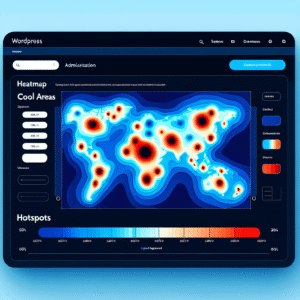
Enhance Your WordPress User Experience with Powerful Heatmap and Session Recording Plugins
Explore top heatmap and session recording plugins for WordPress to boost user experience and gain valuable insights into visitor interaction.

Top WordPress Plugins to Track and Enhance User Experience in 2025
Discover top plugins to enhance WordPress user experience through tracking and visualization while prioritizing privacy and effective engagement.
Enhance Your Website’s User Engagement: Best WordPress Plugins for Heatmaps and Click Tracking
Explore top WordPress plugins to enhance user engagement with heatmaps and click tracking. Improve conversions and user experience effortlessly.