
Discover the Best WordPress Heatmap Plugins to Enhance User Experience
Introduction to Heatmap Plugins
Discover how understanding user behavior can transform your WordPress site with powerful insights.
What Are Heatmap Plugins?
A WordPress heatmap plugin is a powerful tool that visually represents user interactions on your site, including clicks, scrolls, and mouse movements. These tools offer a dynamic, graphical snapshot of user engagement, helping you identify areas for improvement.
Benefits of Heatmap Tools
- Offers actionable insights into user preferences and habits.
- Drives better conversion rates by optimizing site layout.
- Reveals how far users scroll down a page for content performance analysis.
How Heatmap Plugins Work
Discover the mechanics behind heatmap plugins and their role in enhancing website functionality.
User Activity Recording
Heatmap plugins capture user interactions such as clicks, scroll depth, and mouse movements to create a visual representation of user engagement.
Real-Time Data Analysis
Data from user interactions is processed in real-time to generate heatmaps, highlighting high and low engagement areas using varying color intensities.
Insightful Reporting
Heatmap reports provide insights into user behavior, highlighting both effective website areas and sections that need improvement.
By understanding how users interact with your site, you can enhance user experience and drive increased conversions through data-driven decisions.
Top Free Heatmap Plugins for WordPress
Discover the leading free heatmap plugins to optimize your WordPress site without extra costs. These tools help you understand user engagement and improve your site’s performance effectively.
Hotjar
A beginner-friendly option that provides heatmaps, session recordings, and limited reports. Ideal for small websites to track user interactions and identify key areas of attention.
Crazy Egg
Offers a strategic free trial with heatmaps, scrollmaps, and confetti reports to visualize clicks by different referral sources, perfect for optimizing page layouts.
WP Click Map Free
Tailored for WordPress, this plugin allows detailed click maps creation, visualizing site interactions for beginners in heatmap analytics.
Mouseflow
Despite its reputation for session recording, Mouseflow provides heatmaps too. Ideal for comprehensive interaction tracking, offering a robust analysis dashboard.
Privacy Considerations with Heatmap Plugins
Ensure your site’s data practices align with modern privacy standards while leveraging heatmaps effectively.
Choose Privacy-Focused Plugins
Select plugins like Hotjar and Crazy Egg that include compliance tools for GDPR and CCPA, ensuring responsible data management.
Protect User Data
-
Ensure Transparency
Disclose data use through privacy policies and obtain explicit user consent.
-
Anonymize Data
Enable anonymization features to protect user identities.
-
Regularly Review Policies
Keep policies updated with evolving privacy regulations.
-
Limit Data Access
Restrict access to heatmap data to authorized personnel only.
-
Storage and Retention
Evaluate storage periods and regularly clean outdated records.
Plugin Setup and Integration Tips
Choose the Right Plugin
Select a heatmap plugin that aligns with your needs. Consider options like Hotjar, Crazy Egg, or WordPress-specific solutions.
Backup Your Site
Ensure you have a full backup before installing any plugin to safeguard against potential issues.
Install and Configure
Install the plugin in the WordPress dashboard and configure the settings appropriately for accurate data tracking.
Identify Key Areas for Tracking
Define which pages and elements to track to maximize insights. Focus on key interaction points like product pages.
Test Your Setup
Run tests to ensure data is captured correctly. Validate by checking the plugin dashboard for recorded clicks and interactions.
Review Data Regularly
Analyze the collected data regularly to identify patterns in user behavior and make informed improvements to enhance user experience.
Alternative Tools to Consider
Expand your toolkit with these powerful alternatives to ensure optimal site performance and enhanced user experience on WordPress.
Crazy Egg
Discover detailed visual insights into user behavior through heat mapping capabilities. Track clicks and scrolling for informed UX decisions.
- Heatmaps to visualize user engagement
- Identify scrolling behavior
Mouseflow
Session replay and funnel analytics to uncover conversion blockers, providing clear insights for enhanced website conversions.
- Session replay for user journey insight
- Funnel analysis for conversion improvement
FullStory
Gain comprehensive customer experience insights with session replays and robust analytics for interactive content understanding.
- Powerful session replay tools
- Deep customer experience analytics
Lucky Orange
Combining heatmaps, recordings, and conversion funnels, it also includes live chat for real-time visitor engagement opportunities.
- Comprehensive user behavior tools
- Interactive live chat capabilities
Case Studies: Success with Heatmap Plugins
E-commerce Business Boost
Discovering static images that attracted clicks, the business converted them into links, boosting engagement by 30% and increasing sales.
Content Website Optimization
By focusing on popular topics and streamlining content layout, user retention grew by 20% with enhanced visitor engagement.
Conclusion and Next Steps
In conclusion, leveraging heatmap plugins can substantially elevate the user experience on your WordPress site. By utilizing tools like the best session recording plugin for WordPress, you gain invaluable insights into how visitors interact with your site. This allows for targeted enhancements that optimize engagement and conversion rates.
Next Steps for Effective Deployment
- Evaluate Your Needs: Identify specific objectives and challenges within your site that heatmaps and session recordings can address.
- Select the Right Plugin: Research and choose a WordPress plugin to visualize user interaction that fits your specific requirements, budget, and technical capabilities. Popular choices often offer easy installation and intuitive dashboards.
- Analyze Data Regularly: Regularly review the data collected by these plugins to stay informed about user behavior patterns and emerging trends.
- Make Data-Driven Changes: Use the insights gained to implement strategic changes aimed at improving site functionality and user experience.
- Continuously Test and Refine: Consistently test the changes you make and refine them based on ongoing insights to continually enhance your site’s performance.
Embrace these next steps, and you’ll be well on your way to mastering the art of user interaction analysis, driving your WordPress site toward greater success and user satisfaction. Ready to get started? Explore these plugins today and transform your insights into meaningful action.
Browse Categories:
You may also like

Maximize Engagement with the Best WordPress User Click Tracking Plugins
Discover how the best WordPress user click tracking plugins can enhance site engagement and improve user experience effortlessly.

Unlocking Insights: Best Plugins for Tracking User Behavior on WordPress
Discover the best WordPress plugins for tracking user behavior and gain insights to enhance your site's performance and user experience.
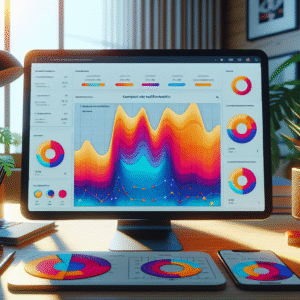
Enhance User Insights with the Best WordPress Heatmap and Behavior Tracking Plugins
Discover top heatmap plugins to track and improve user engagement on your WordPress site, offering ethical insights and enhanced conversions.