
Enhancing User Experience on WordPress: Top Heatmap and Click Tracking Plugins
Why User Experience is Critical for WordPress Sites
In the digital age, user experience (UX) has become a defining factor for the success of websites, and WordPress sites are no exception. A seamless user interaction not only boosts visitor satisfaction but also impacts conversion rates and brand perception.
Real-World Example
Consider the case of e-commerce giant Amazon, where a one-second delay in page load could result in a $1.6 billion annual sales loss, highlighting how essential UX is for retention and sales encouragement.
WordPress UX Strategies
To ensure an exceptional experience on WordPress, blending design, functionality, and resonating content is key. Tools like click tracking plugins offer insights into user navigation, highlighting improvement areas.
Competitive Advantage
In a digital landscape where fast, efficient, and visually appealing experiences are expected, investing in UX not only boosts user satisfaction but fosters positive impressions, leading to sustained growth.
Understanding Click Tracking on WordPress
In today’s digital landscape, understanding how users interact with your website is crucial for optimizing user experience and boosting conversions. Click tracking on WordPress provides invaluable insights into user behavior by recording what and where users click on your site, revealing patterns, popular sections, and bottlenecks.
The Benefits of Click Tracking
- Gain a secret window into your visitor’s journey, identifying which elements draw the most attention and why.
- Utilize data-driven insights to improve or relocate underperforming sections and capitalize on high-interaction areas.
- Simplify tracking user behavior with plugins for better understanding of navigation paths and user engagement.
- Enhance e-commerce strategies by iterating on sales funnels and maximizing conversion rates through comprehensive user behavior tracking.
Empower Your Website
Embrace click tracking to create a more intuitive web experience, ensuring your site remains relevant and effective to meet the evolving needs of your audience.
Explore Plugin SolutionsHow to Select the Right Click Tracking and Heatmap Plugins
1. Define Your Goals
Identify whether you’re focusing on increasing sales, enhancing user experience, or both. This clarity will guide your plugin feature requirements.
2. Evaluate Ease of Use
Choose a plugin that integrates smoothly with your existing infrastructure and offers an intuitive interface, sufficient documentation, and active support.
3. Consider Performance & Compatibility
Ensure compatibility with the latest WordPress versions to avoid issues. Prefer plugins with high ratings and positive user feedback.
4. Analyze Analytics and Reporting
Look for plugins offering detailed data and customizable dashboards for insights tailored to your optimization goals.
5. Assess Cost-effectiveness
Consider if premium features justify their cost. Balance potential benefits against your budget and objectives.
Top WordPress Heatmap and Click Tracking Plugins
Hotjar
Hotjar is renowned for its robust heatmap and session recording functionalities, ideal for tracking clicks and taps to understand user behavior patterns. Offers a free plan suitable for startups and small websites.
Crazy Egg
With powerful visualization tools like heatmaps and scroll maps, Crazy Egg provides insights into navigation patterns. A 30-day free trial is available for evaluation.
Mouseflow
Excelling in session replays and heatmaps, Mouseflow offers features to identify where users drop off in funnels. Provides a free limited starter plan for budget-conscious users.
Inspectlet
Offers real-time analysis, form analytics, alongside click tracking and heatmaps. Includes a free tier with up to 2,500 data points/month, ideal for eCommerce sites.
Lucky Orange
Combines heatmaps, chat, and conversion funnel analysis with a real-time dashboard for instant insights. A 7-day free trial is available for versatility testing.
Best Practices for Implementing Heatmap and Click Tracking Plugins
Implementing heatmap and click tracking plugins on your website can offer invaluable insights into user behavior, optimizing for better engagement and conversions. Follow these best practices to fully harness these tools.
Choose the Right Plugin
Consider options like ‘record user activity WordPress plugin’ or the ‘best session recording plugin WordPress’ for detailed interactions and data visualization.
Proper Installation
Follow setup instructions, often involving JavaScript integration or plugin installation through your WordPress dashboard.
Configure Properly
Adjust settings for heatmaps on targeted pages and specify events to be tracked. Customize these to gain valuable insights.
Analyze Data Regularly
Use insights from heatmaps and click tracking to iteratively refine site design and content, enhancing user experience.
Maintain and Update Plugins
Ensure plugins and updates are in sync with your site to maintain optimal performance and compatibility.
Analyzing Data from Click Tracking Tools
Transform your website’s user experience by interpreting valuable click tracking insights to boost conversions and engagement.
Identify Popular Features and Content
Discover which elements capture user attention the most to guide content strategies.
Understand User Navigation Paths
Uncover user journeys and remove obstacles to enhance the flow.
Optimize Call-to-Actions (CTAs)
Refine your CTAs for increased engagement and effectiveness.
Bounce Rate Analysis
Analyze engagement vs. bounce rate to address content misalignments.
How to Address Plugin Conflicts and Errors
Offer solutions for troubleshooting common conflicts, providing peace of mind to users as they explore plugin options.
Identify the Conflict
Start by deactivating all plugins to determine if a plugin is causing issues. Reactivate one by one, checking your site after each.
Update Everything
Ensure WordPress, as well as all plugins and themes, are fully updated to fix bugs and improve compatibility.
Check Plugin Documentation
Consult plugin documentation for solutions to known issues.
Increase PHP Memory Limit
Increase PHP memory limit through hosting’s cPanel or wp-config.php to prevent memory-related errors.
Use Error Logs
Enable WordPress debugging mode to identify specific errors and their causes.
Reach Out for Support
Contact plugin developers with details and screenshots for assistance.
Consider a Staging Environment
Test plugins in a staging environment to avoid live site issues.
Ensuring Privacy and Security with Tracking Plugins
Protect User Data
Ensuring the privacy and security of user data is paramount in an era where data breaches are headline news. Protecting visitor information builds trust and ensures compliance with regulations like GDPR and CCPA.
Privacy-Focused Plugins
Choose a privacy-focused WordPress heatmap plugin that anonymizes data, avoiding the collection of personal details while providing insights through aggregated data.
Robust Security
Opt for plugins with regular updates and from reputable developers. Enhance data protection with SSL encryption and frequent security audits, and use a dedicated WordPress security plugin for active monitoring.
Boost Conversions
Show your commitment to data safety—it boosts user trust and engagement, leading to improved conversion rates.
Browse Categories:
You may also like

Top WordPress Plugins for Enhanced User Interaction and Tracking
Discover the best WordPress plugins for improving user interaction and tracking behaviors to boost engagement and conversions on your site.
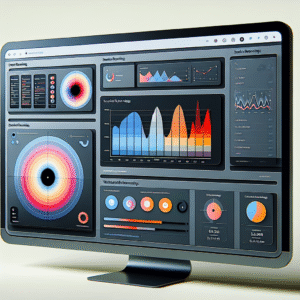
Unlocking User Insights: The Best WordPress Plugins for Heatmaps and Session Recording
Discover the best WordPress plugins for tracking user behavior with heatmaps and session recordings to boost user experience and conversions.
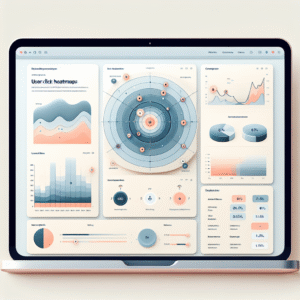
Enhance Visitor Insight with Top WordPress User Tracking Plugins
Explore the best WordPress tracking plugins to enhance user insights and optimize your site's performance with targeted, privacy-focused solutions.