
Mastering User Engagement: The Best WordPress Heatmap Plugins and How to Use Them
Understanding Heatmaps in WordPress
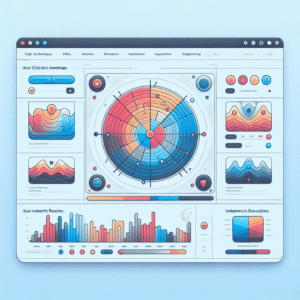
In the ever-evolving digital landscape, understanding how users interact with your WordPress site is crucial for optimizing its performance and enhancing user experience. This is where heatmaps come into play. A heatmap is a data visualization tool that uses color to represent how users interact with your site.
Why Heatmaps Matter
Heatmaps are invaluable for gaining insights into user behavior. By employing a WordPress heatmap plugin, you can easily capture these insights directly on your site. Visualize user interactions and make informed adjustments to improve user flow and conversion rates.
- Identify high-engagement areas
- Enhance user flow and conversions
Optimizing Your Site
Combining heatmaps with user behavior tracking plugins provides a powerful toolkit for webmasters. Pinpoint user clicks and monitor navigation patterns to optimize your WordPress site effectively.
- Understand navigation patterns
- Track user dwell times
Why Use Heatmap Plugins on WordPress?
Heatmap plugins on WordPress can be a game-changer for improving user engagement and optimizing your website design. By providing visual insights into user behavior, these plugins help you understand how visitors interact with your site.
Capture User Attention
Identify the areas of your site that capture the most attention. See where users click, hover, and scroll on your pages to make informed decisions about content placement.
Optimize conversion rates by placing important content in high-interaction areas.
Spot Navigation Bottlenecks
Identify bottlenecks in navigation and streamline your menu for a more intuitive user experience.
Encourage users to stay longer and explore more by optimizing navigation.
Gain Visual Insights
Leverage visual data to enhance user engagement across your pages.
Transform user interactions into actionable insights for your website design.
Improve User Satisfaction
Enhance the user experience by using data to inform layout and design decisions.
Achieve higher user satisfaction and retention on your site.
Top WordPress Heatmap Plugins for 2025
In today’s digital landscape, understanding user behavior on your WordPress site is more crucial than ever. Heatmap plugins provide unparalleled insights into how users interact with your website, helping you optimize for better conversions. Let’s dive into the top heatmap plugins of 2025 and see which stands as the best plugin to improve conversions on WordPress.
Hotjar
A comprehensive suite of tools, including visitor recordings, surveys, and feedback polls. Visual representation of clicks, taps, and scrolling behavior for easy optimization.
- Conversion rate optimization
- Identify engage-worthy parts of landing pages
Crazy Egg
User-friendly interface with A/B testing capabilities. Offers Confetti and Overlay tools to filter clicks for strategic insights.
- Filter by referral sources
- Clarity on engagement elements
Mouseflow
Extends beyond heatmaps with session replays and funnel analysis. Privacy-focused with global data protection compliance.
- Friction score highlights issues
- Privacy-focused operation
Lucky Orange
Offers live chat, visitor recordings, and conversion funnels. Real-Time Dashboard aids in immediate improvements for conversion rates.
- Comprehensive analytics tool
- Real-Time Dashboard for immediate data
Smartlook
Tracks anonymous visitors ensuring data privacy. Suitable for strict data privacy environments while gathering analytics.
- Privacy-focused visitor tracking
- Access to heatmaps and recordings
Getting Started: Setting Up Your First Heatmap
Heatmaps are a powerful visualization tool that can help you understand how users interact with your website. Follow this guide to confidently start your analysis journey.
Step-by-Step Guide to Setting Up Your Heatmap
- Install and Activate the Plugin: Access the WordPress Plugin Repository, search for “heatmap,” choose a suitable option, ‘Install Now,’ then ‘Activate.’
- Configure Basic Settings: Navigate to plugin settings from your WordPress dashboard to define tracking pages and set specific parameters.
- Integrate Your Analytics Data: Ensure your analytics account is connected for comprehensive monitoring.
- Launch Your Heatmap: Start the tracking process and allow data to accumulate over time.
- Review and Analyze Data: Access reports via your plugin dashboard to identify high interaction areas and optimize user experience.
Analyzing Heatmap Results Effectively
Once you’ve set up your heatmap tracking and gathered data, the next crucial step is to analyze this information effectively to make meaningful site improvements.
- ‘Hot’ areas in red indicate high interaction.
- ‘Cold’ areas in blue show little engagement.
- Identify misleading designs or CTAs by user interaction on non-functional elements.
- Integrate tools like Scroll Tracking for comprehensive user behavior analysis.
Taking action on heatmap data involves prioritizing changes to enhance user experience. Fix issues where users focus unexpectedly, such as popular sidebars lacking actionable content.
Regular review and iterative changes are key as user behavior adapts over time. Stay proactive in maintaining an optimized and user-friendly site.
Learn MoreAvoiding Common Heatmap Mistakes
Insufficient Traffic Data
Avoid deploying heatmaps on low-traffic pages where data might be skewed and statistically insignificant.
Overreliance on Heatmaps
Integrate with session recordings or use a record user activity plugin to get a comprehensive view.
Lack of Data Segmentation
Segment data by audience type to uncover unique interaction patterns and refine strategies.
Ineffective Tool Usage
Consider alternatives to Hotjar for tailored integrations on WordPress sites.
Using Heatmap Insights to Enhance User Experience
Heatmap tools offer a powerful perspective on user interactions by translating complex data into actionable insights, crucial for enhancing user experiences and engaging audiences effectively.
User Interaction Patterns
- Understand where users are clicking and which elements attract the most attention.
- Identify perceived buttons or links for a smoother user journey.
Insights from Session Recordings
- Recognize subtle behavioral patterns and barriers.
- Address form abandonment issues effectively.
A/B Testing with Heatmaps
- Determine effectiveness of call-to-action buttons visually.
- Make decisions based on empirical evidence rather than predictions.
Choosing the Right Plugin for Your Needs
Selecting the right heatmap plugin for your specific goals is a critical step in optimizing your website’s user experience and conversions. First, it’s crucial to define what you intend to achieve with the plugin. Are you looking to gain insights into user behavior, improve conversions, or perhaps reduce your website’s bounce rate?
Key Considerations
- Define your goals: user insights, conversion improvement, bounce rate reduction.
- Ease of use: consider if a solution with a simple interface is needed.
- Compatibility: ensure the plugin works with your WordPress setup.
Budget & Support
- Budget consideration: freemium models available for trial.
- Premium features: advanced options for growing needs.
- Support: check for responsive developer support.
Need Assistance?
Get in touch with our support team for personalized recommendations and integration assistance.
Contact UsBrowse Categories:
You may also like

Maximizing User Interaction and Experience: The Best WordPress Plugins for 2025
Unlock the full potential of WordPress in 2025 with top plugins to boost user interaction and experience.
Maximize User Engagement With The Best WordPress Heatmap Plugins
Discover the power of WordPress heatmap plugins and boost your site's engagement with our expert guide.

Unlocking User Insights: The Best WordPress Heatmap and Session Recording Plugins
Discover the best heatmap and session recording plugins for WordPress to optimize user experience and conversions without sacrificing privacy.