
Boost User Engagement with the Best WordPress Heatmap Plugins
Understanding Heatmaps in WordPress
Discover how heatmaps can revolutionize your understanding of user behavior on your WordPress site, providing actionable insights for optimization.
What are Heatmaps?
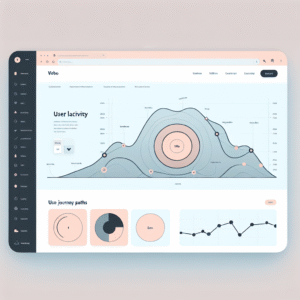
Heatmaps are powerful visualization tools that depict a graphical representation of data using colors. In web contexts, they track user interactions such as clicks, scrolls, and hover in a seamless, visual manner.
Uncover where users focus their attention on your WordPress site to pinpoint areas for improvement or discover unexpected user paths.
- Track user interaction with buttons, images, and links.
- Identify areas with the most user engagement and detect design flaws.
- Integrate seamlessly with WordPress to extract insightful data effortlessly.
- Use heatmap analysis to make informed, data-driven decisions for site optimization.
Why Track User Clicks and Behavior?
Understanding how users interact with your website is crucial for optimizing their experience and enhancing the overall functionality of your site. By tracking user clicks and behavior, you gain invaluable insights into what content resonates with your audience, the path they take while navigating through your site, and where potential issues lie.
This data becomes a powerful tool for making informed decisions that can lead to increased engagement, improved UX/UI design, and ultimately, higher conversion rates.
- Identify content that resonates with your audience and recognize navigation paths.
- Discover drop-off points and improve conversion rates through A/B testing.
- Leverage WordPress plugins to easily visualize key metrics like click paths and interaction rates.
For example, integrating a WordPress user click tracking plugin allows businesses to pinpoint problem areas and make data-driven adjustments. A small e-commerce business discovered through such a plugin that a high number of users abandoned their carts during checkout. By refining this step, they successfully reduced cart abandonment rates.
Top WordPress Heatmap Plugins to Consider
Discover essential tools to optimize your WordPress site by analyzing user interactions through powerful heatmap plugins.
Hotjar
Known for a comprehensive suite of tools, it provides click heatmaps, session recordings, and feedback polls with an intuitive interface.
Lucky Orange
Combines heatmaps with session recordings to track navigation, identify usability issues, and enhance user experience.
Crazy Egg
Features heatmaps, scrollmaps, and confetti reports, with A/B testing to optimize site performance and engagement.
Mouseflow
Tracks activity through session replays, funnel analytics, and form analytics to understand user drop-off points.
Choosing Privacy-Focused Heatmap Plugins
Understand your visitors while respecting their privacy with these top WordPress heatmap plugins.
Crazy Egg
Robust heatmap features with GDPR compliance and data anonymization options.
Track behavior securely without compromising individual identities.
Hotjar
Offers privacy settings including data anonymization and user opt-out features.
Build trust with transparency and secure data handling.
Matomo
Open-source platform focused on user data protection with server-hosted data.
Full control over data collection ensuring no third-party access.
Integrating Heatmaps into Your WordPress Site
Transform how you understand and optimize user interactions with heatmaps. These visual tools show where visitors click, scroll, and move their mouse, offering insights into behavior that can enhance design and functionality.
-
Install the Plugin
Choose a heatmap plugin from the WordPress repository, like Crazy Egg, Hotjar, or Mouseflow. Install and activate via the WordPress dashboard.
-
Configure Plugin Settings
Set up an account if needed and customize what you track – from specific pages and user segments to device types.
-
Add Tracking Code
Insert tracking code into your site’s head tag if required. Follow the guidance within the plugin’s documentation.
-
Validate Installation
Reload your site to ensure tracking is active. Confirm functionality via plugin settings.
Why Use Heatmaps?
Heatmaps provide valuable insights into user behavior, enabling you to make informed decisions that enhance site layout and user experience.
Analyzing Heatmap Data for Insights
Heatmaps are an invaluable tool for understanding how users interact with your website, offering visual representations that highlight user behavior patterns. These insights can lead to more informed decisions on optimizing site design and enhancing user experience.
Click Maps
- Precisely shows where users click the most.
- Reposition essential links or buttons if ignored.
Scroll Maps
- Reveals how far users scroll down the page.
- Spot content failing to capture attention.
Move Maps
- Tracks areas of most cursor movement.
- Correlates with user attention and interest.
Using a WordPress plugin to visualize user interaction can streamline the process of tracking user behavior and providing analytics. By turning heatmap insights into action, you can improve site performance and user satisfaction significantly.
Case Studies: Successful User Interaction Improvements
E-commerce Fashion Retailer
An e-commerce fashion retailer leveraged a WordPress heatmap plugin to boost their website’s user experience by visually tracking interactions. Resulting strategic layout tweaks led to a 12% increase in conversion rates within two months.
B2B Technology Company
Utilizing a lead generation plugin on WordPress, a B2B tech company enhanced contact forms and introduced personalized campaigns—boosting customer acquisition by 20%.
Troubleshooting Common Plugin Issues
When using a WordPress heatmap plugin, users often encounter several common issues that can interfere with the performance and accuracy of their data tracking efforts. Addressing these issues proactively will not only improve the functionality of the plugin but also boost your confidence in utilizing these powerful tools to gain insights into your site’s user behavior.
Plugin Conflicts & Errors
- Deactivate Plugins: Start by deactivating other plugins one by one to identify which might be causing the conflict with your heatmap plugin. Reactivate each after testing.
- Update and Compatibility: Ensure all plugins, including your WordPress heatmap plugin, are up to date. Check the plugin documentation for compatibility notes.
- Error Logs: Utilize error logs within WordPress to pinpoint specific problems and refer to the plugin’s support forum or contact its developers for technical guidance.
Data Display and Collection Issues
- Accuracy of Implementation: Double-check that the heatmap plugin is correctly implemented on your site. Inaccurate installation can lead to flawed data collection.
- Check Viewing Conditions: Verify the plugin’s compatibility across different platforms to avoid issues related to incompatible browsers or devices.
Browse Categories:
You may also like
Enhancing User Experience with the Best WordPress Click Tracking and Heatmap Plugins
Discover top WordPress plugins for click tracking and heatmaps to enhance user experience and optimize your site's design.

Enhancing User Experience: The Best WordPress Heatmap Plugins to Track User Behavior
Unlock the full potential of your WordPress site by leveraging heatmap plugins to track user behavior and improve user experience.
Optimize Your WordPress Site with Heatmap & 3D Viewer Plugins
Discover how heatmaps and 3D viewer plugins can enhance your WordPress site, improve user interaction, and drive engagement.