Enhance WordPress User Engagement with Top Heatmap Plugins
Introduction to Heatmaps
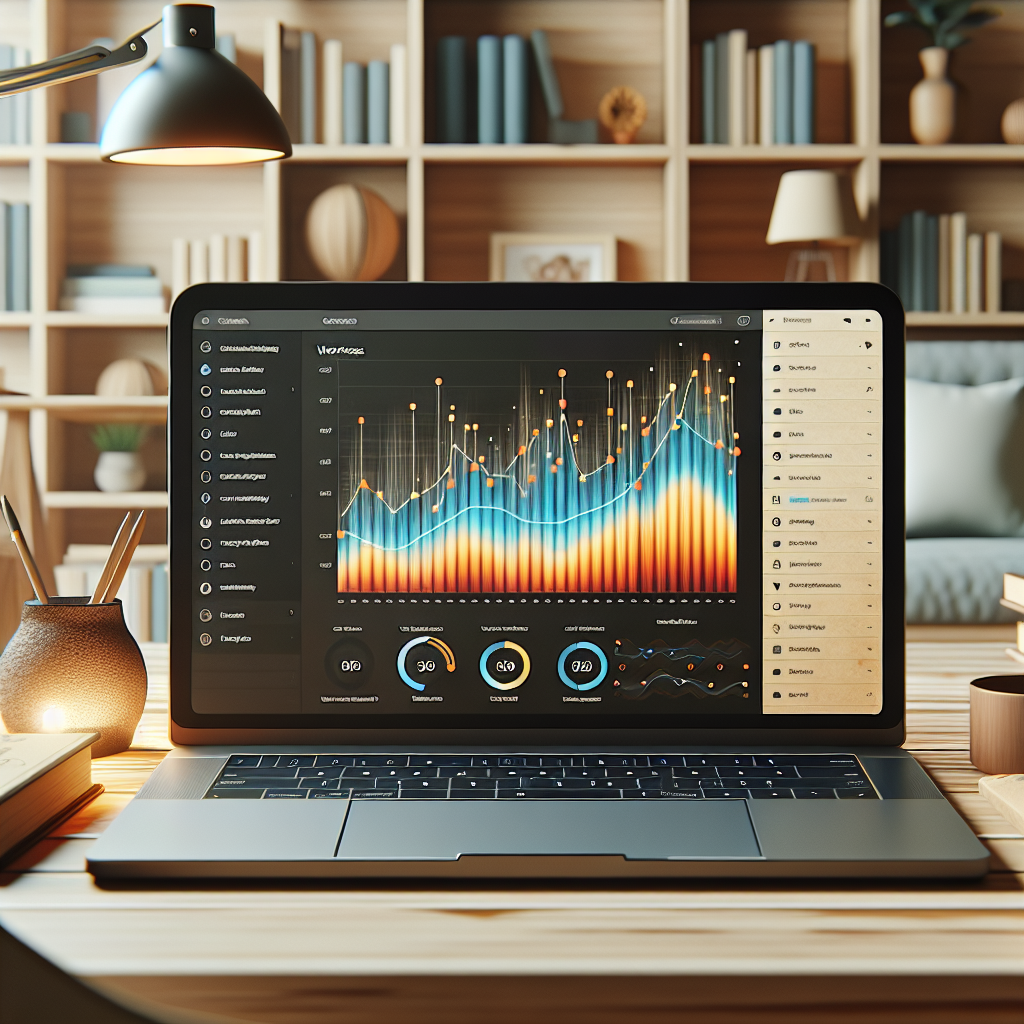
Understanding how users interact with your website can offer invaluable insights into improving your site’s performance and user experience. Heatmaps serve as a powerful visualization tool, enabling site owners to see where visitors are clicking, scrolling, or pausing on their pages. Essentially, they transform complex data into a more digestible format by highlighting the most engaged areas with warmer colors, much like a weather map illustrates temperature shifts.
Insightful Visualization
Imagine having the ability to peek over the shoulder of every visitor on your website—that’s precisely the kind of insight heatmaps provide. Whether you’re running a WordPress site or any other platform, using a WordPress heatmap plugin can make the implementation of these tools seamless and efficient.
User Behavior Patterns
Heatmaps reveal patterns in user click tracking. Key areas like call-to-action buttons might not receive expected attention, or users may click on non-interactive elements, indicating potential confusion or unmet expectations in your site’s design.
Prioritizing Redesign Efforts
Heatmaps help prioritize redesign efforts by pinpointing high interaction areas and those ignored. This is particularly valuable for e-commerce sites where understanding user behavior can directly influence conversion rates and sales.
Data-Driven Decision Making
Ultimately, integrating heatmaps into your website analytics toolbox provides actionable insights, enabling data-driven decisions to enhance the user experience and achieve site goals more effectively.
Benefits of Using Heatmap Plugins
Visualize User Interaction
Heatmap plugins revolutionize understanding user interaction by highlighting areas that receive the most attention. This allows webmasters to refine design for better engagement.
Optimize Conversion Rates
By pinpointing high-performing areas and where users drop off, heatmaps aid in strategically enhancing conversion points, turning engagement into tangible results.
Decode Scroll Depth
Analyze user scrolling to adjust content length and structure, creating concise, effective page designs that keep visitors engaged.
Transform Insights into Strategy
Heatmap plugins offer detail beyond basic metrics, transforming decisions from guesswork to data-driven strategies. Implement today and unleash your site’s potential.
Top Free WordPress Heatmap Plugins
Discover tools to optimize user experience without breaking the bank.
Crazy Egg
Provides scroll maps and click maps to understand user navigation with free basic features.
Learn MoreHeatmap for WordPress
Efficiently tracks visitor activity and highlights the most engaging parts of your page.
Learn MoreSessionCam
Offers a limited free version that visualizes user movement and uncovers UX issues.
Learn MoreInspectlet
Provides eye-tracking heatmaps and session recordings in a free tier for real-time monitoring.
Learn MoreSlimstat Analytics
Offers heatmap-like features within a comprehensive analytics suite to track and analyze clicks.
Learn MoreChoosing a Privacy-Focused Plugin
Secure User Data
Safeguarding user data is critical for compliance with regulations like GDPR and CCPA. Privacy-focused plugins help achieve this by securing data and providing transparency.
Privacy in Heatmaps
Choose heatmap plugins that anonymize user data and offer data control features, ensuring sensitive information is protected and not shared unnecessarily.
Build Trust
By prioritizing user privacy, businesses prevent breaches, protect their reputation, and build trust and loyalty, enhancing their brand image.
Installation and Setup Guide
Installation
- Access Your WordPress Dashboard: Start by logging into your WordPress admin area. This is typically accessed by adding ‘/wp-admin’ to your site’s URL.
- Navigate to Plugins: On the left-hand menu, find and click on ‘Plugins’.
- Add New Plugin: On the top of the Plugins page, click ‘Add New’.
- Search for the Plugin: In the search bar, type ‘track user behavior wordpress plugin’. Review the options and select your preferred plugin.
- Install Now: Once you’ve chosen a plugin, click ‘Install Now’. This process will download the plugin to your site.
Activation
After installation, click ‘Activate’ to start using the plugin. Activation ensures the plugin is ready for configuration.
Configuration
- Access Plugin Settings: Navigate back to the ‘Plugins’ menu, find your installed plugin, and click on ‘Settings’ or ‘Configure’.
- Set Tracking Parameters: Define what user behaviors you want to track. This can include page views, button clicks, or form submissions.
- Integrate with Analytics Tools: If your plugin offers, link it to Google Analytics or another analytics tool for comprehensive data insights.
- Customize Reports: Configure how you’d like the tracked data to be reported—such as dashboards, email reports, or CSV exports.
Testing
- Check Functionality: Once configured, test the plugin by performing actions on your website. Ensure data is being tracked as expected.
- Review Data: After a few days, review the data to confirm it aligns with your expected metrics and adjust settings if necessary.
Real-World Examples
Heatmap plugins are powerful tools that can provide invaluable insights into how users interact with your website. By visualizing user behavior, businesses can optimize their site layout and improve user experience, directly impacting their conversion rates and overall success.
E-Commerce Success
An e-commerce company identified key areas of user attention using a heatmap plugin. This led to strategic placement of CTAs, increasing their sales by 30% within a few months.
Publication Engagement
A popular online publication refined their editorial strategy through heatmap insights, boosting page views by 25% by focusing on engaging content areas.
Non-Profit Impact
A non-profit streamlined its donation process via heatmap analysis, nearly doubling donations in a single campaign cycle by enhancing user engagement.
Troubleshooting Common Issues
Plugin Conflicts & Errors
Conflicts occur when plugins interfere with each other or perform overlapping functions. This often leads to errors on your site.
- Deactivate all plugins.
- Reactivate one-by-one, checking for errors.
- Identify and replace conflicting plugin.
Site Speed Degradation
Heavy plugins can slow down your site, affecting user experience.
- Regularly audit plugins for necessity and updates.
- Use caching plugins.
- Consider a content delivery network (CDN).
Compatibility Issues
New WordPress updates can lead to plugin malfunctions if compatibility is not ensured.
- Check compatibility before updates.
- Update plugins regularly.
- Consult developer notices for potential issues.
Future Trends in WordPress Plugins
Stay informed and adaptable as we speculate on upcoming innovations in the plugin landscape.
AI Integration
Experience smarter analytics, personalized content, and automated support with AI-enhanced plugins reshaping user interaction.
Revolutionizing User ExperiencePerformance Optimization
As speed remains key, expect plugins focusing on reduced loading times and server load for optimal performance.
Fast and EfficientSecurity & Compliance
Look for enhanced encryption and compliance tools aligning with global privacy regulations like GDPR.
Prioritizing PrivacyNo-Code Solutions
Empower non-coders with tools to build complex site functionalities easily, fostering digital empowerment.
Simplified DevelopmentBrowse Categories:
You may also like
Tracking User Behavior: The Best WordPress Plugins for Heatmaps and Session Recording
Explore essential WordPress plugins for tracking user behavior with heatmaps and session recording to enhance user experience.
Boost User Engagement and Track Behavior with the Best WordPress Heatmap Plugins
Explore the best WordPress heatmap plugins to enhance user engagement by tracking how visitors interact with your site.

Revolutionize User Engagement with WordPress Heatmap and Session Recording Plugins
Discover top WordPress heatmap and session recording plugins to boost user engagement and insights with straightforward guidance.