Choosing the Best WordPress Heatmap Plugins to Enhance User Engagement
Why You Need Heatmap Tools on Your WordPress Site
Unlock the full potential of user engagement by understanding behavior with heatmaps.
Understand User Behavior
In today’s digital age, understanding how users interact with your website is crucial for maximizing engagement and conversions. This is where heatmap tools come into play. By visually representing user activity, heatmaps provide insights into which parts of your WordPress site attract the most attention.
For instance, a well-placed call-to-action button can significantly boost conversions if you know exactly where users spend the most time.
Enhance User Engagement
Imagine you’ve launched a new product page and want to ensure potential customers are engaging with the content. A WordPress heatmap plugin can show you exactly how users interact with your site.
Armed with this knowledge, you can easily adjust your layout or content to guide users more effectively, thereby improving the user experience and ultimately driving more sales.
The Essentials of WordPress Heatmaps
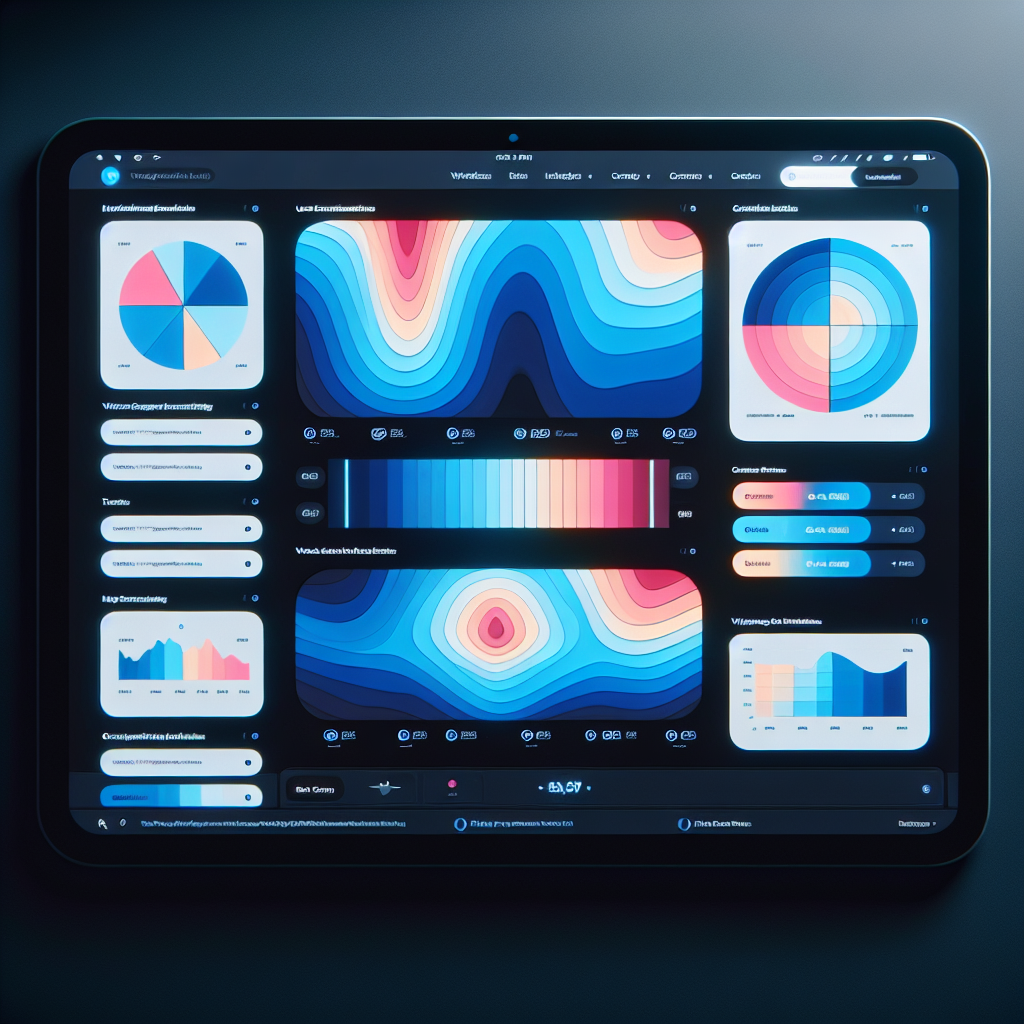
Understanding how users interact with your WordPress site is crucial in optimizing user experience. Heatmaps visually represent user behavior with color-coded data, allowing you to quickly identify popular and overlooked sections.
Visualize User Engagement
Heatmaps use warm colors like red and orange for high interaction areas, highlighting critical content spots.
Optimize Content Placement
Gain insights to strategically position CTAs and essential information based on real user activity.
Choosing the Right Plugin
Select lightweight plugins to balance performance with essential tracking features. Options include free plugins suitable for smaller sites.
Top WordPress Heatmap Plugins in 2025
Discover the best heatmap plugins to understand and enhance user engagement on your WordPress site. Optimize your user experience with cutting-edge tools this year.
Hotjar
Offers comprehensive analytics with heatmaps, session recordings, and surveys, providing a 360-degree view of user interactions.
Crazy Egg
Known for its user-friendly interface and simple setup, offering heatmaps, insightful reports, and A/B testing tools.
MouseFlow
Offers in-depth session replay and advanced filtering, helping to identify specific behavior nuances.
Lucky Orange
Combines heatmap tools with chat and survey features, offering live user insights—ideal for budget-conscious businesses.
Clarity by Microsoft
Offers robust features for free, with machine learning insights to detect user interaction issues and improve engagement.
Comparing Features: Free vs Premium Heatmap Plugins
Choosing the right heatmap plugin for WordPress can significantly impact your website’s user experience and conversion rates. Whether you’re a small business working with a limited budget or a larger enterprise ready to invest in premium tools, understanding the differences between free and premium plugins is essential for making an informed decision.
Free Plugins
- Track visitor behavior with basic heatmaps and click tracking.
- Perfect for small businesses with basic data analytics needs.
- Cost-effective insight into webpage clicks and drop-off points.
- Limitations: page view caps, reduced customization, data retention limits.
Ideal for newcomers or budget-conscious businesses.
Premium Plugins
- Comprehensive features including detailed session recordings.
- Fully customizable reports and advanced data integrations.
- Supports higher or unlimited page views, ideal for high-traffic sites.
- Provides deeper insights for precise website improvements.
Best for growing businesses or complex analytical demands.
Effective Implementation and Usage of Plugins
Improve user interaction and boost Conversion Rate Optimization (CRO) by implementing strategic plugin management. Discover how to utilize these tools effectively to maximize your website’s potential.
User Activity Tracking
Utilize plugins like Crazy Egg or Hotjar to visualize where users click. Heatmaps reveal which areas of your site need adjustment for better engagement.
- Install: Set up a reliable tracking plugin.
- Analyze: Review heatmaps to understand user focus.
- Iterate: Make data-driven improvements.
Record User Activity
Use plugins like Mouseflow or UserReplay to record and replay sessions. Understand navigation paths to reduce drop-offs and improve conversions.
- Track: Review user sessions to pinpoint hurdles.
- Optimize: Adjust your site based on clear insights.
- Enhance: Refine user journeys for better CRO.
© 2025 Your Company
Privacy Considerations and Alternatives
Understand and address privacy aspects of using heatmap tools, and discover alternative solutions for privacy-conscious site owners.
Privacy Challenges with Heatmaps
- Extensive data collection can inadvertently capture sensitive information.
- Rising importance of GDPR and privacy compliance worldwide.
Privacy-Focused Alternatives
- Inspectlet and Lucky Orange: Mask specific elements to ensure only necessary data is captured.
- Matomo: Offers robust analytics with self-hosting options, emphasizing compliance and user control.
Troubleshooting Common Plugin Conflicts
Identify the Conflict
When sudden issues like a site crash occur, recall recent changes. Deactivate all plugins, then reactivate them one by one to identify the troublesome one.
Seek Compatible Updates
Ensure plugins and WordPress core are up-to-date. Check plugin changelogs for reported conflicts and their fixes to maintain compatibility.
Review Plugin Documentation
Plugin developers often document common errors. Explore FAQ sections or forums for similar issues experienced by other users.
Use Debugging Tools
Leverage debugging plugins like Query Monitor to inspect database queries and PHP errors, vital for diagnosing plugin issues.
Reach Out to Support
If self-troubleshooting fails, contact plugin support. Provide detailed environment and troubleshooting steps to expedite assistance.
Maximize Engagement with Strategic Use of Heatmap Tools
Unlock a deeper understanding of user behavior to increase engagement and conversion rates with strategic heatmap tools.
- Visualize user interaction with WordPress plugins for seamless insight integration.
- Analyze areas of high activity for effective content and design layout assessments.
- Optimize user pathways and enhance visibility with precise interaction data.
Why Use Heatmaps?
Transform your engagement strategy by using data-driven insights from heatmaps to guide your design and content decisions.
Contact UsBrowse Categories:
You may also like

Unveiling User Behavior: Top Plugins for Heatmaps and Click Tracking on WordPress
Discover the best plugins to track user behavior and click on WordPress, enhancing site experience and unlocking actionable insights.

Unlocking Insights: The Best WordPress Plugins for User Behavior Tracking in 2025
Discover top WordPress plugins for tracking user behavior, from heatmaps to session recordings, boosting your site's performance and user experience.
Improve User Experience on WordPress: Top Plugins for Click Tracking and Behavior Analysis
Boost your WordPress site with leading plugins for tracking user clicks and behavior analysis, improving user experience and conversions.